

How to Share an Agent
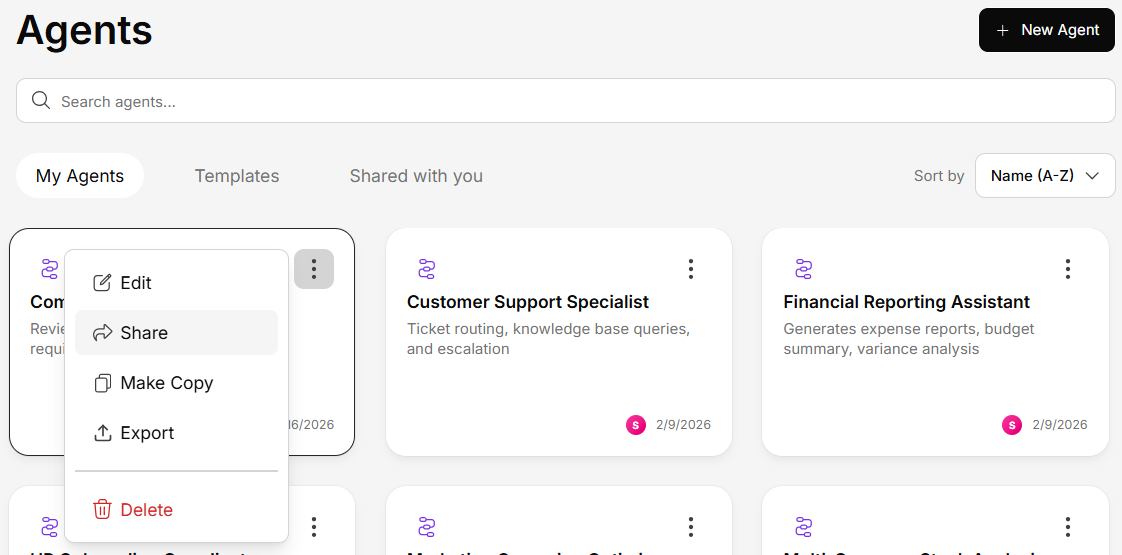
Add users or teams
Search for users by name or email, or select a team. Choose their permission level (Viewer or Editor).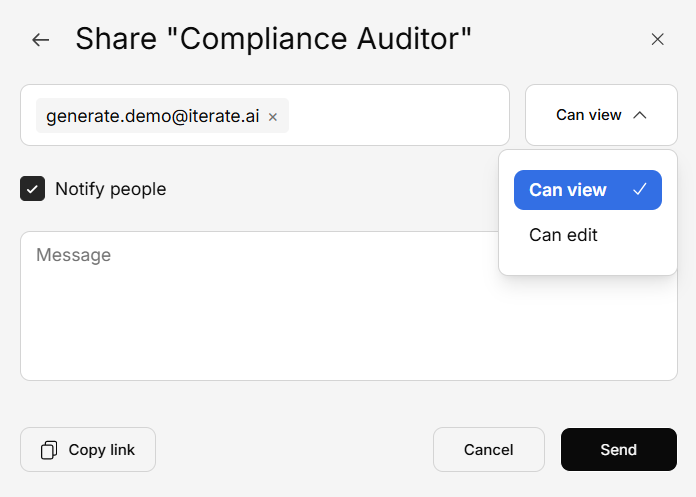
Managing Shared Access
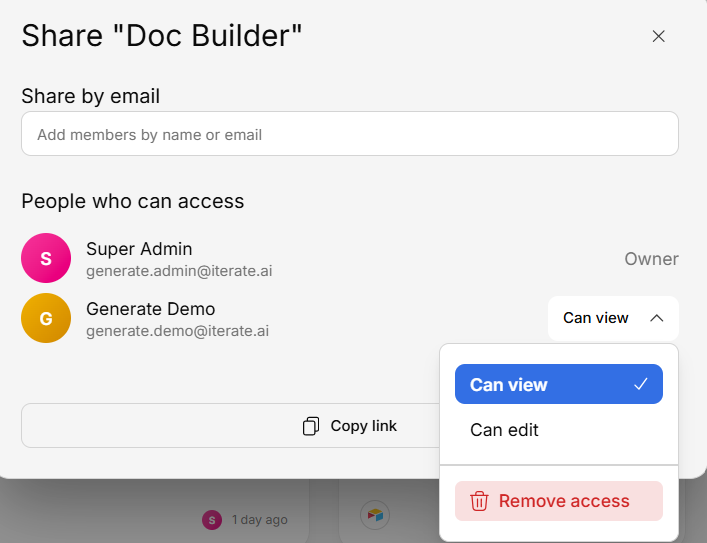
From the share modal, you can:- Change permissions — Upgrade a viewer to editor or downgrade
- Remove access — Revoke a user’s or team’s access
- See who has access — View all current collaborators and their roles
- Copy Link — Share with existing viewers and editors directly with a link
Accessing Shared Agents
Agents shared with you appear under the Shared with You tab in the Agents section.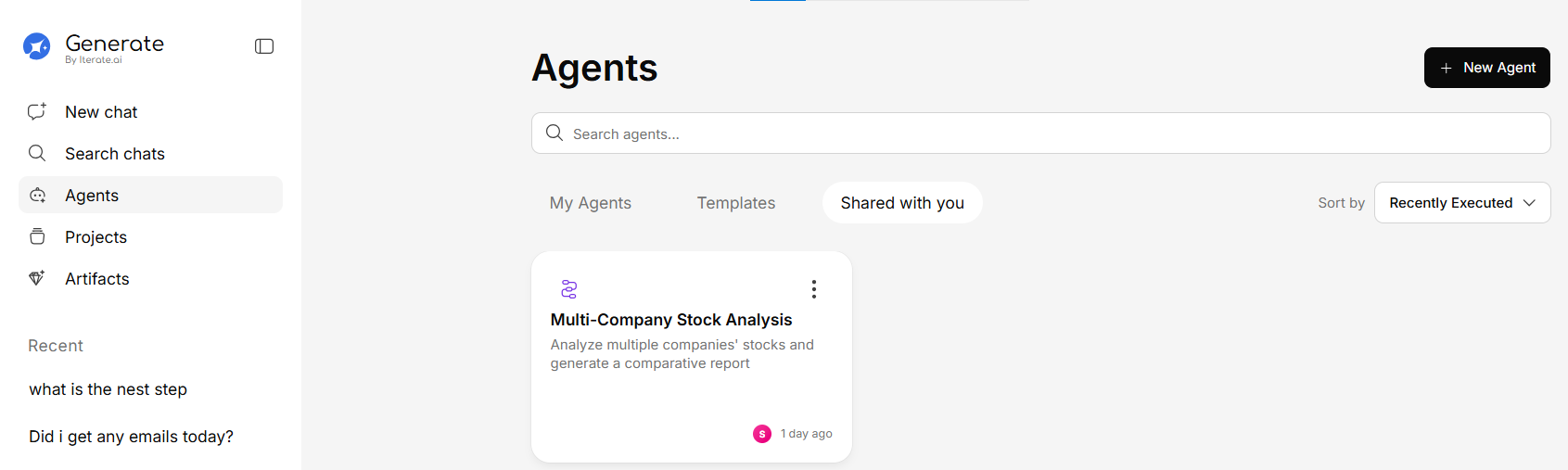
Other Agent Actions
From the agent’s action menu, you can also:| Action | Description |
|---|---|
| Duplicate | Create a copy of the agent under your own account |
| Export as JSON | Download the agent configuration for backup or transfer |
| Add to Project | Associate the agent with a specific project |
| Exit shared | Remove yourself from a shared agent |