

Accessing Your Profile
Click Settings at the bottom of the sidebar to open your account settings.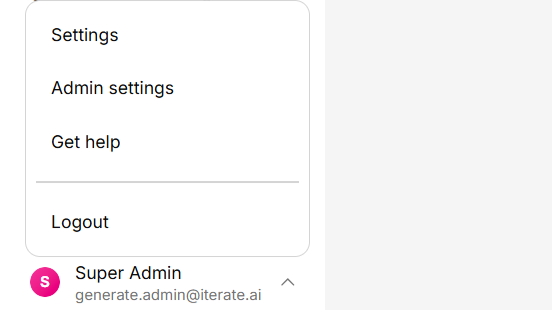
Profile Information
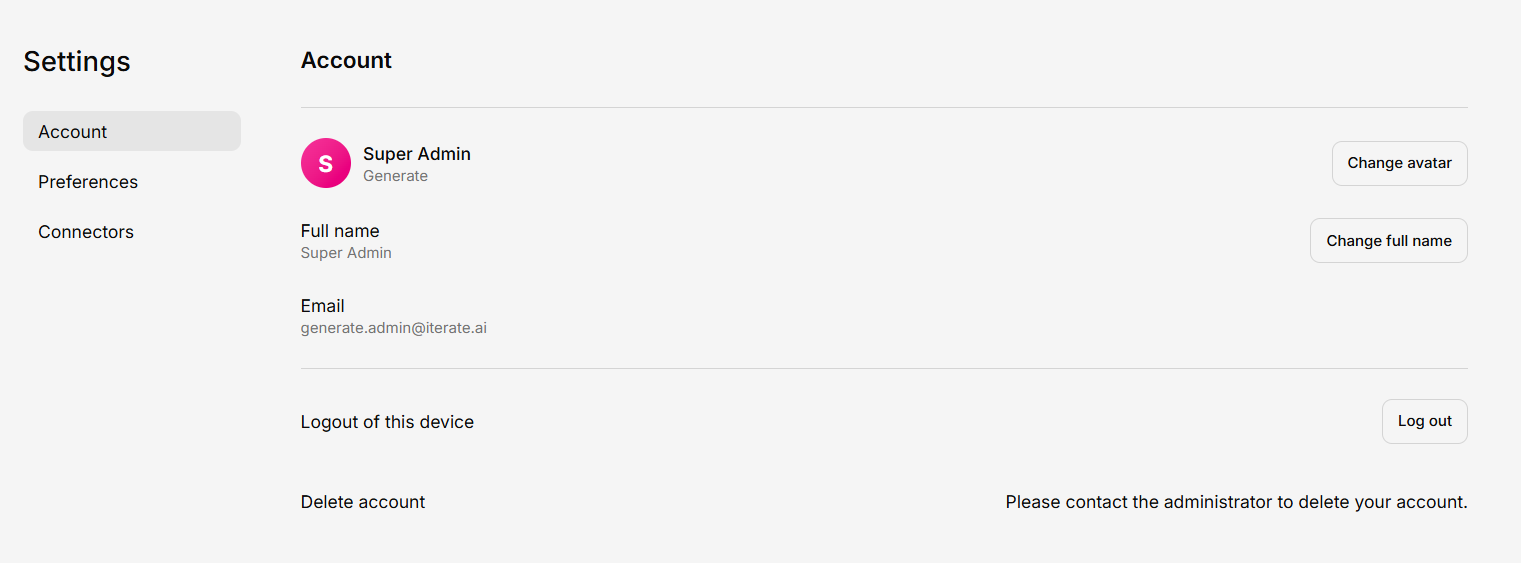
Update your personal details:- Display name — How your name appears in the platform
- Email address — Your login email (may be managed by your organization)
- Profile picture — Upload an avatar
Preferences
Customize how Generate works for you:Language
Choose your preferred display language. Generate supports multiple languages through its internationalization system.
Connectors
Connectors allow you to integrate Generate with external services and data sources. Open the Connectors window from the sidebar to browse the Apps catalog or your organization’s Custom MCP servers, and connect or disconnect them.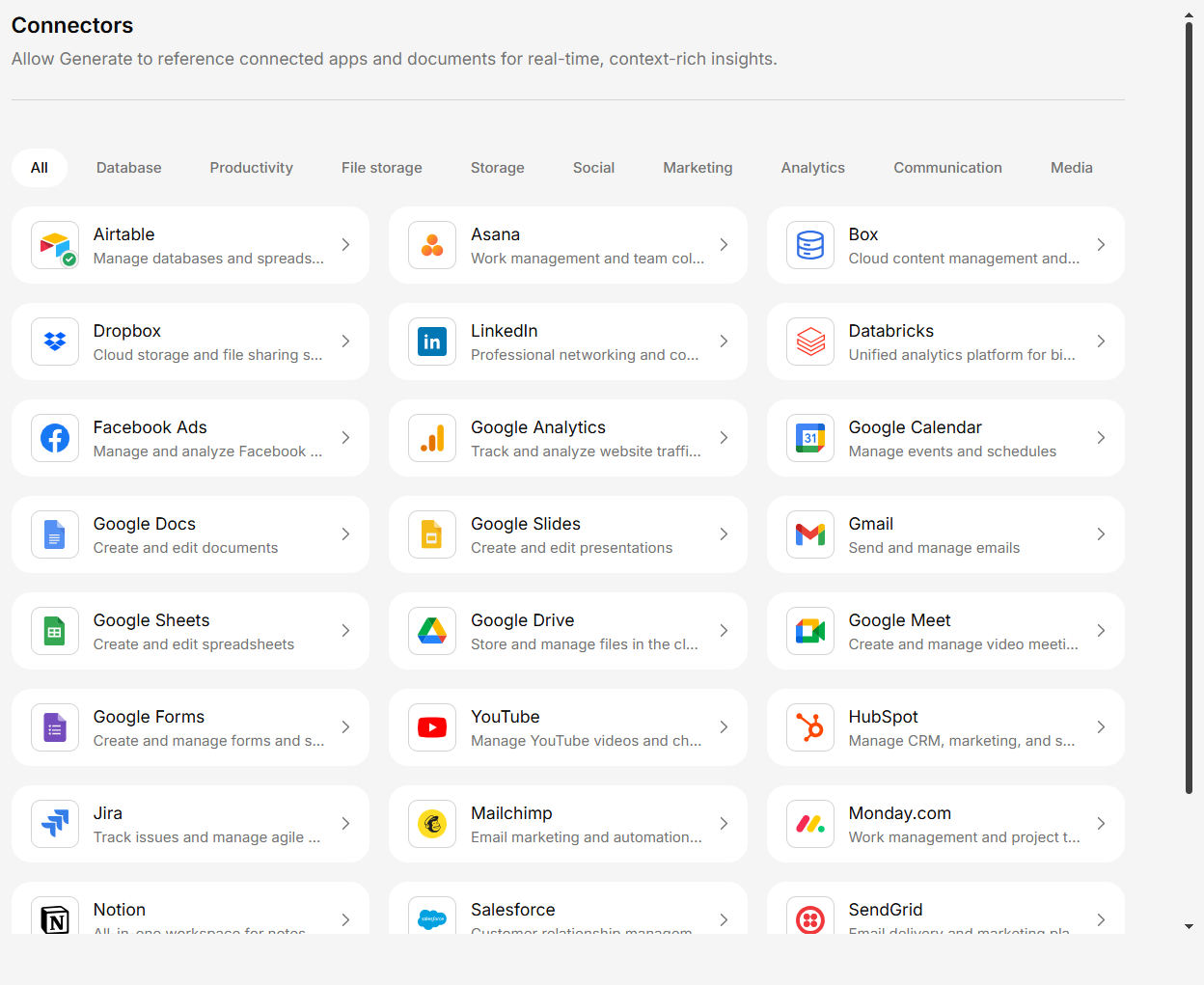
Available Integrations
Generate supports 30+ integrations including:- Cloud Storage — Google Drive, Dropbox, Box
- Business Applications — Salesforce, HubSpot, Notion, Jira, Asana
- Communication — Gmail, Slack
- Databases — PostgreSQL, MySQL, Snowflake, and more
- Google Workspace — Drive, Docs, Sheets, Calendar, Gmail, and more
Changing Your Password
If your organization uses email/password authentication:- Go to Settings → Account → Profile
- Click Change Password
- Enter your current password and your new password
- Click Save