

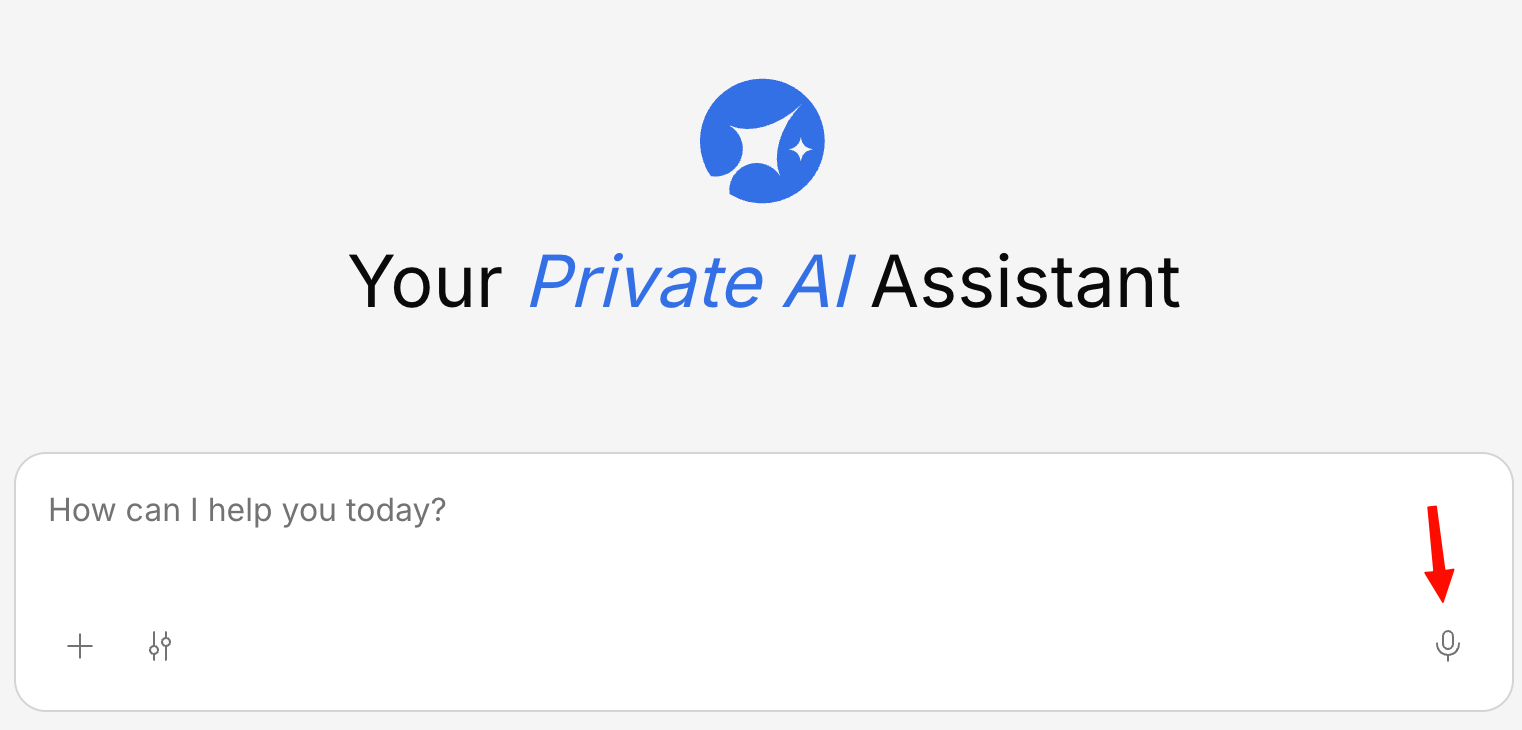
Using Voice Input
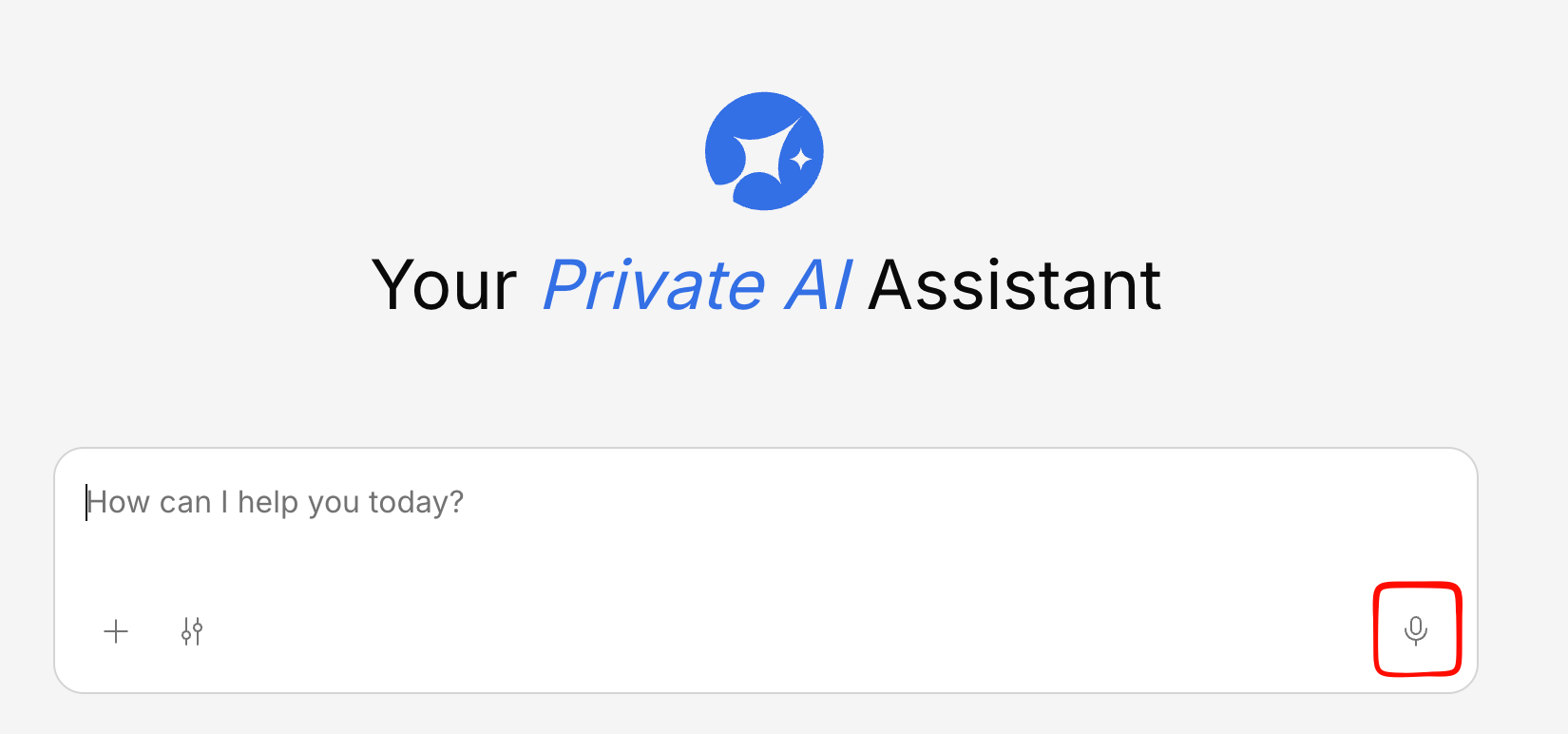
Speak your question
Talk naturally — Generate will transcribe your speech in real-time. You’ll see the text appear as you speak.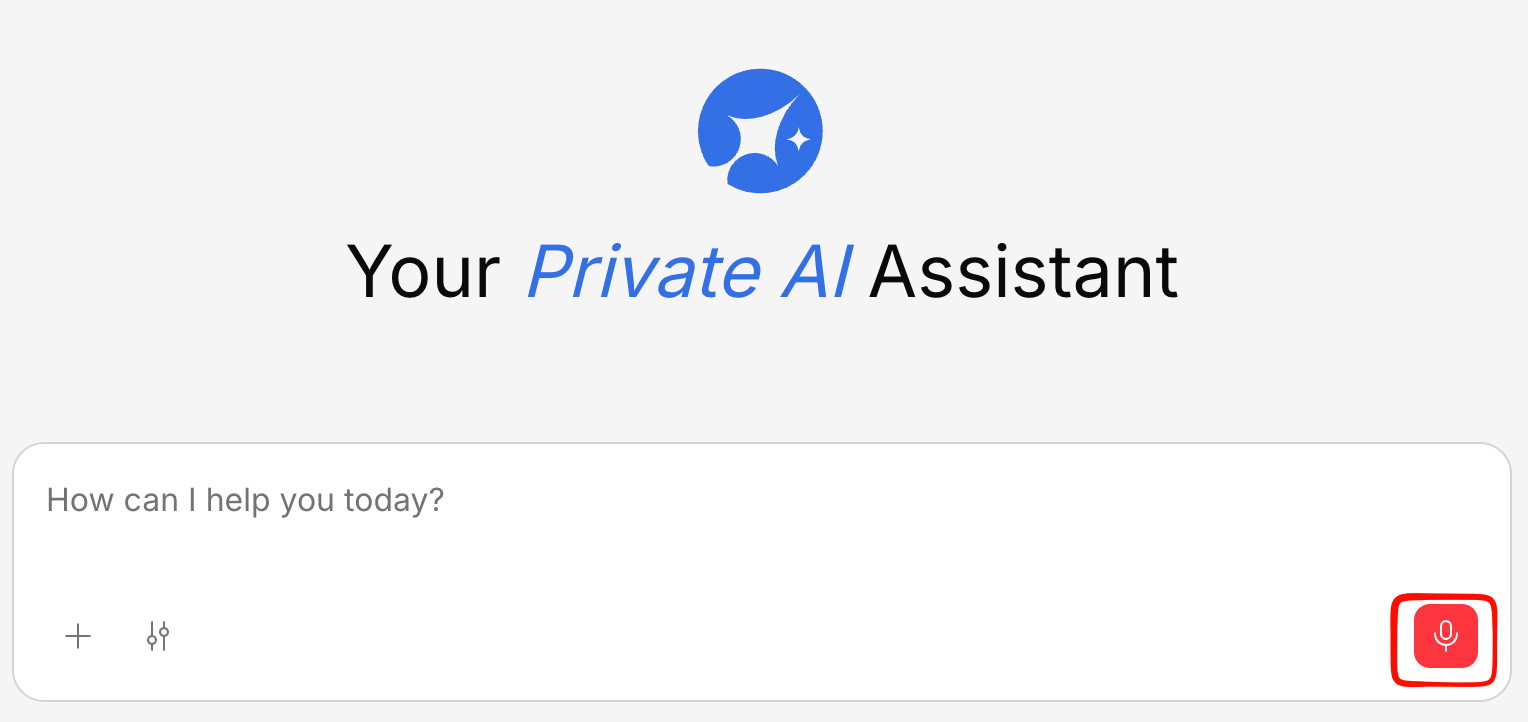
Tips
- Speak clearly — A normal conversational pace works best
- You can edit after — The transcription appears as regular text, so you can correct anything before sending
- Works alongside typing — You can start with voice and finish by typing, or vice versa
Voice input availability depends on your organization’s configuration. If you don’t see the microphone icon, your admin may not have enabled this feature. Contact your administrator to request access.