

Recent Chats
Your most recent conversations appear in the sidebar, listed in chronological order. Click any conversation to pick up where you left off.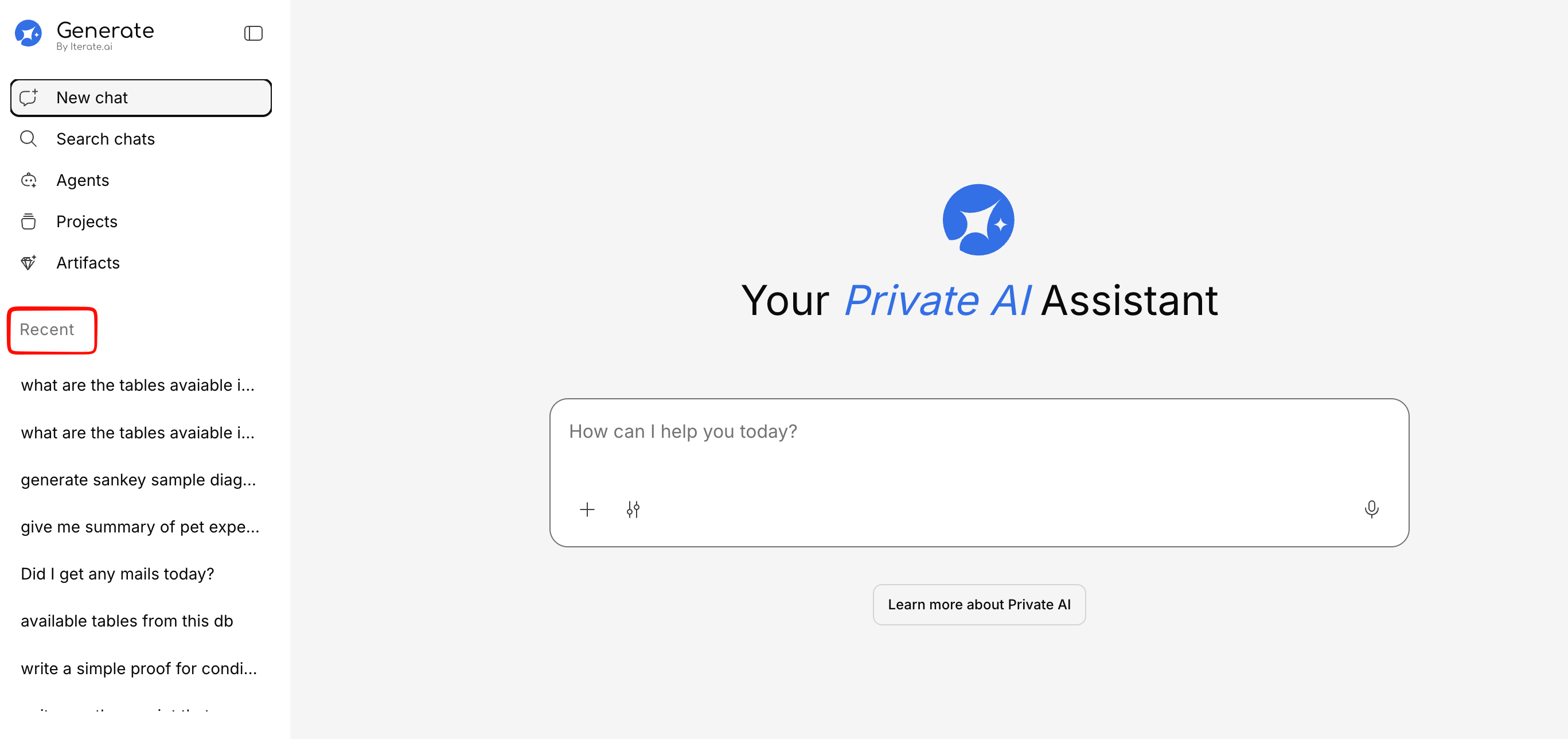
Searching Conversations
Need to find something from a past chat? The Search Chats feature lets you search across all your conversations.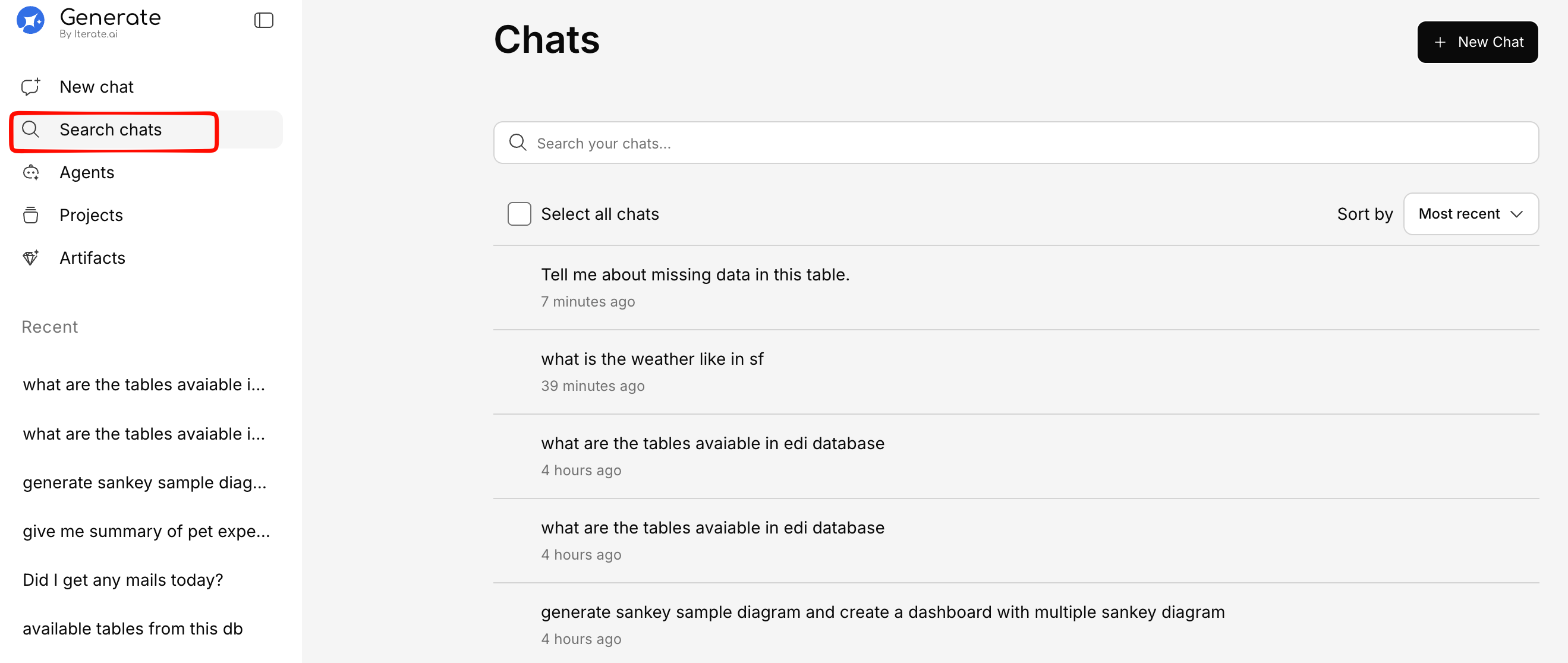
Enter your search term
Type keywords, phrases, or questions. Search looks across:
- Your messages
- AI responses
- Conversation titles
Browse results
Results are displayed as conversation cards showing: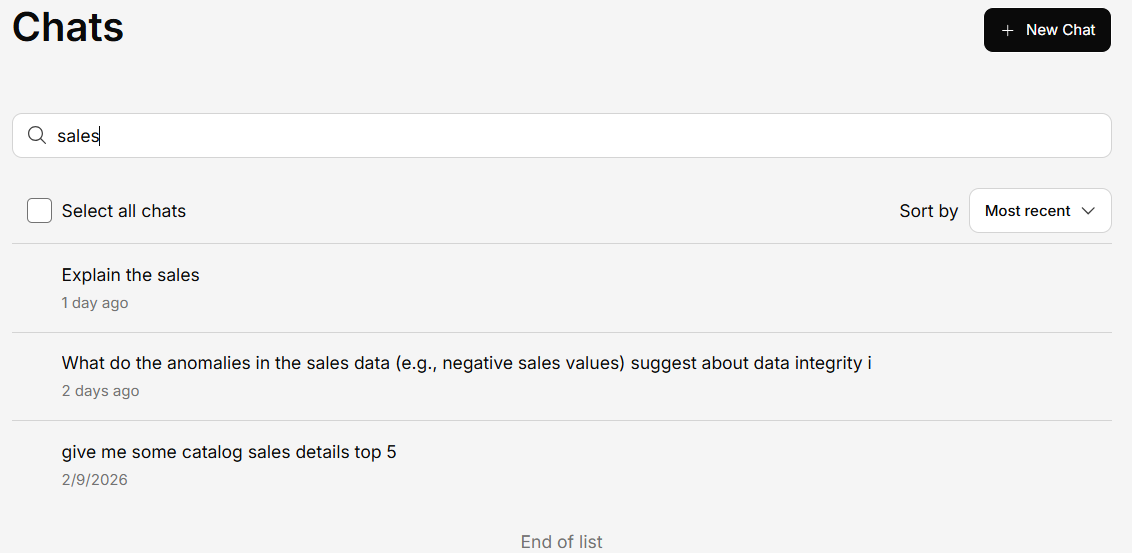 Click any result to open the full conversation.
- Conversation title
- Preview text — The matching message with your search term highlighted
- Date — When the conversation took place
- Checkbox — For selecting conversations for bulk actions
Sorting Results
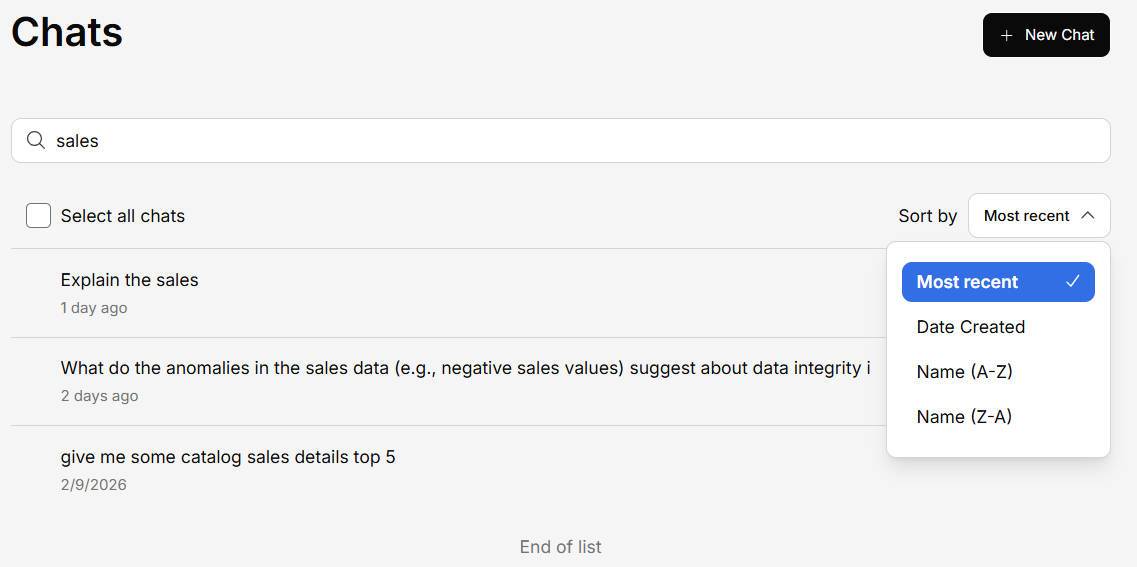
Sort your search results or conversation list by:- Most recent — Newest conversations first
- Oldest — Oldest conversations first
Bulk Actions
Select multiple conversations using the checkboxes, then use the bulk action bar to perform actions on multiple conversations at once. Delete Selected — Remove multiple conversations in one action.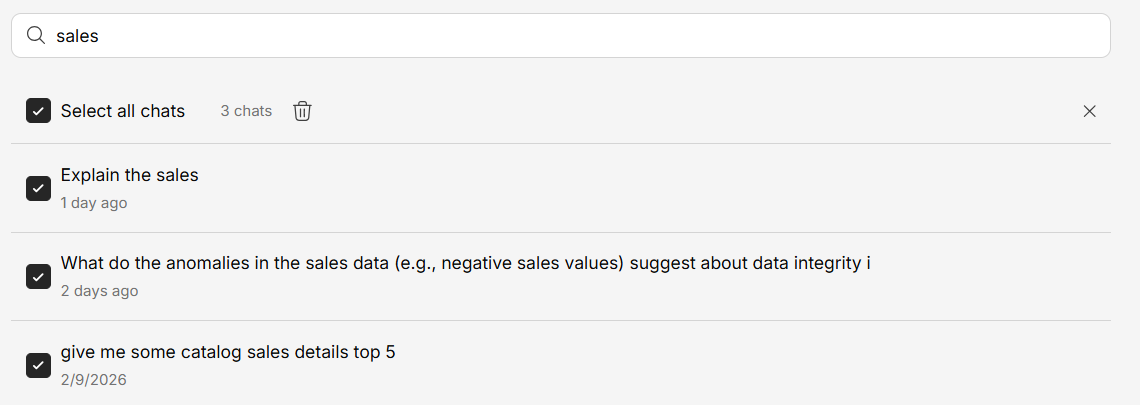
Starting a New Chat from Search
Click the New Chat button at the top of the search page to start a fresh conversation without going back to the main chat view.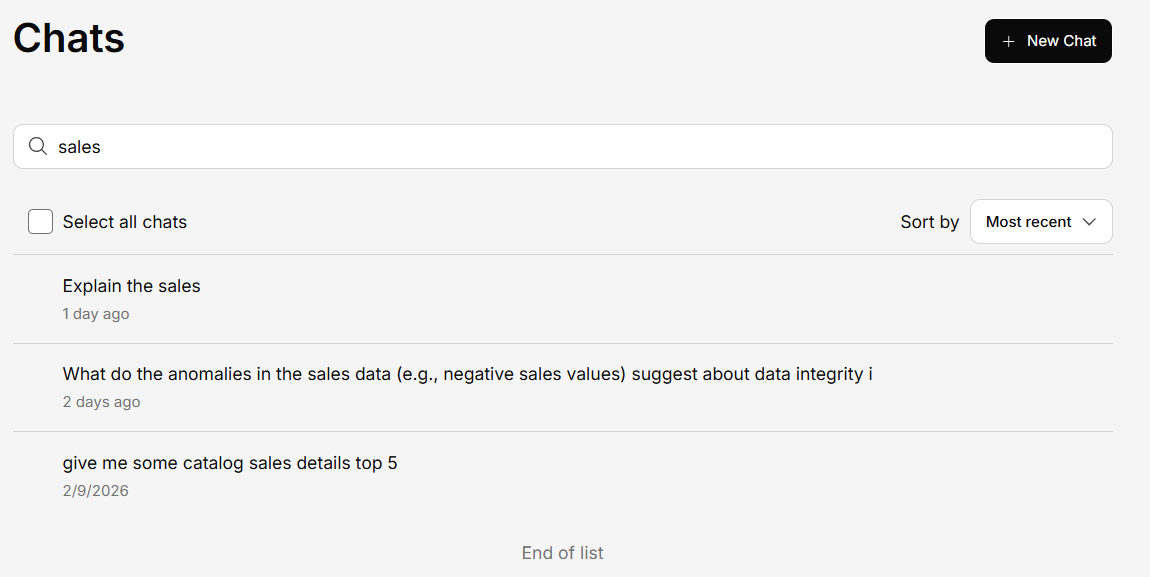
Pagination
If you have many conversations, results load in batches. Scroll down or click Load more to see additional results.Search Chats availability depends on your organization’s feature configuration. If you don’t see it in the sidebar, contact your administrator.
Organizing Your Conversations
To keep things tidy:- Rename conversations — Give them descriptive names so they’re easy to find later
- Delete old chats — Remove conversations you no longer need
- Use projects — Group related conversations under a project for better organization
