
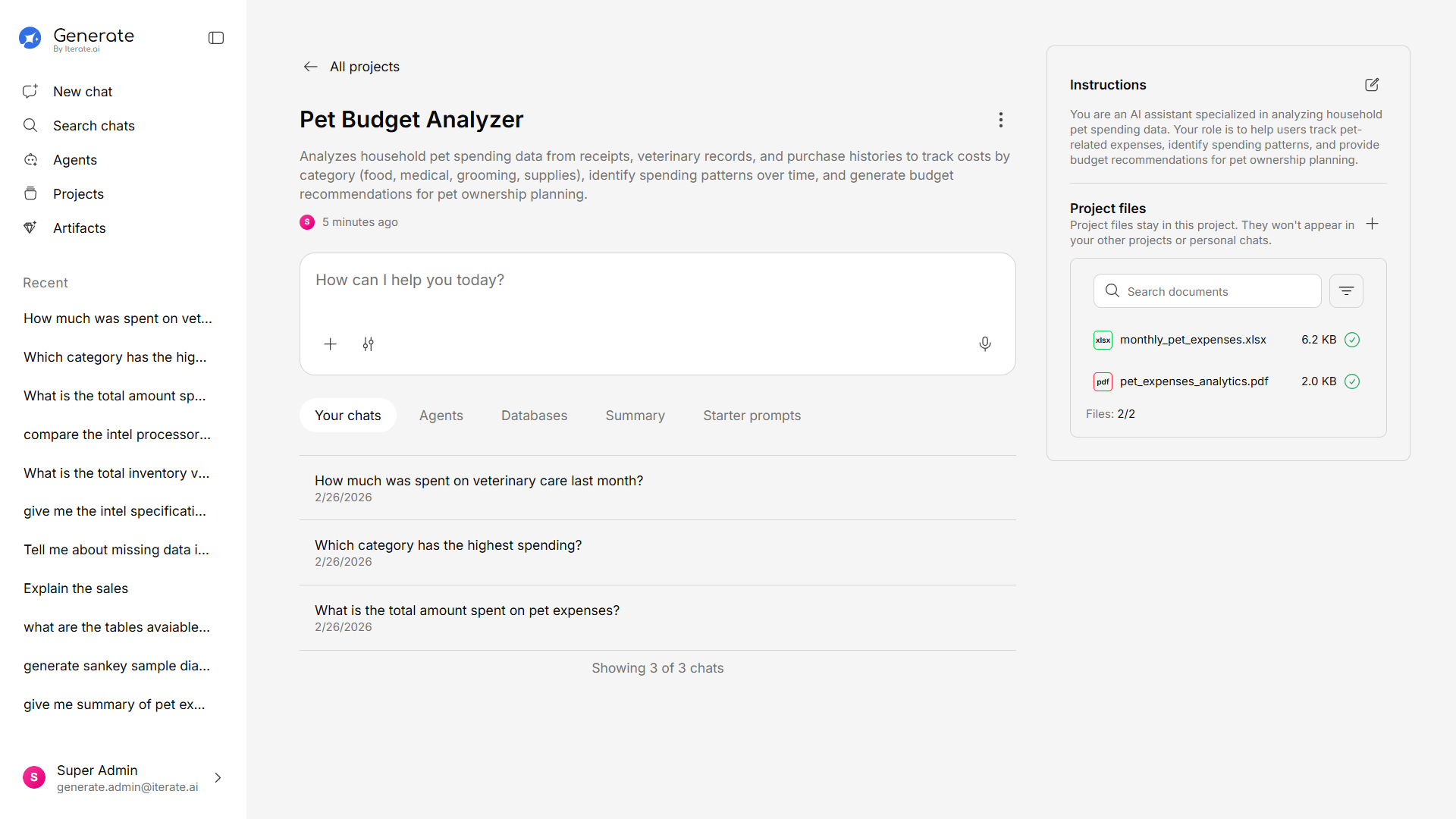
Project Tabs
Your Chats
All conversations within this project. Click any chat to continue the conversation, or start a new one.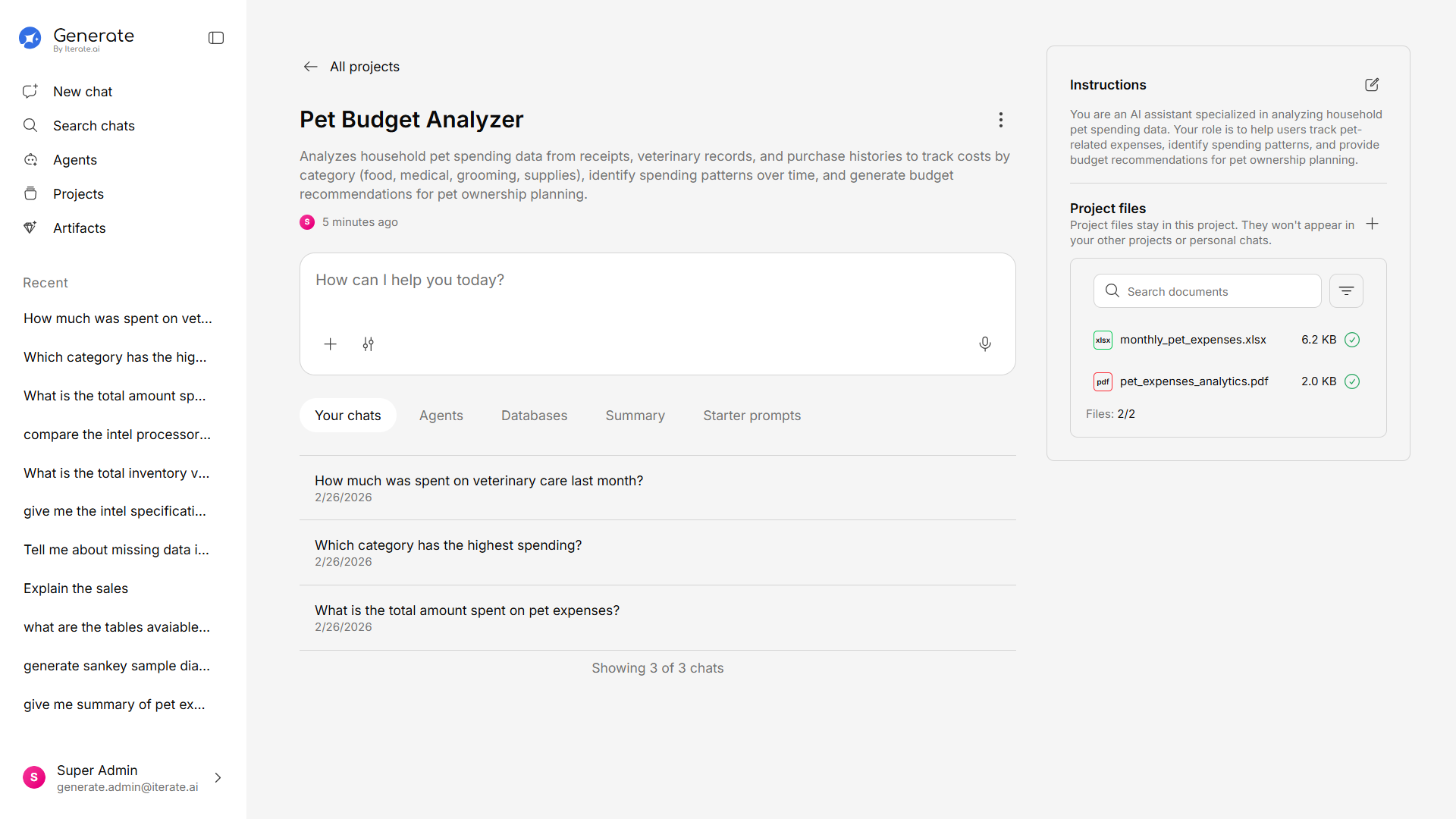
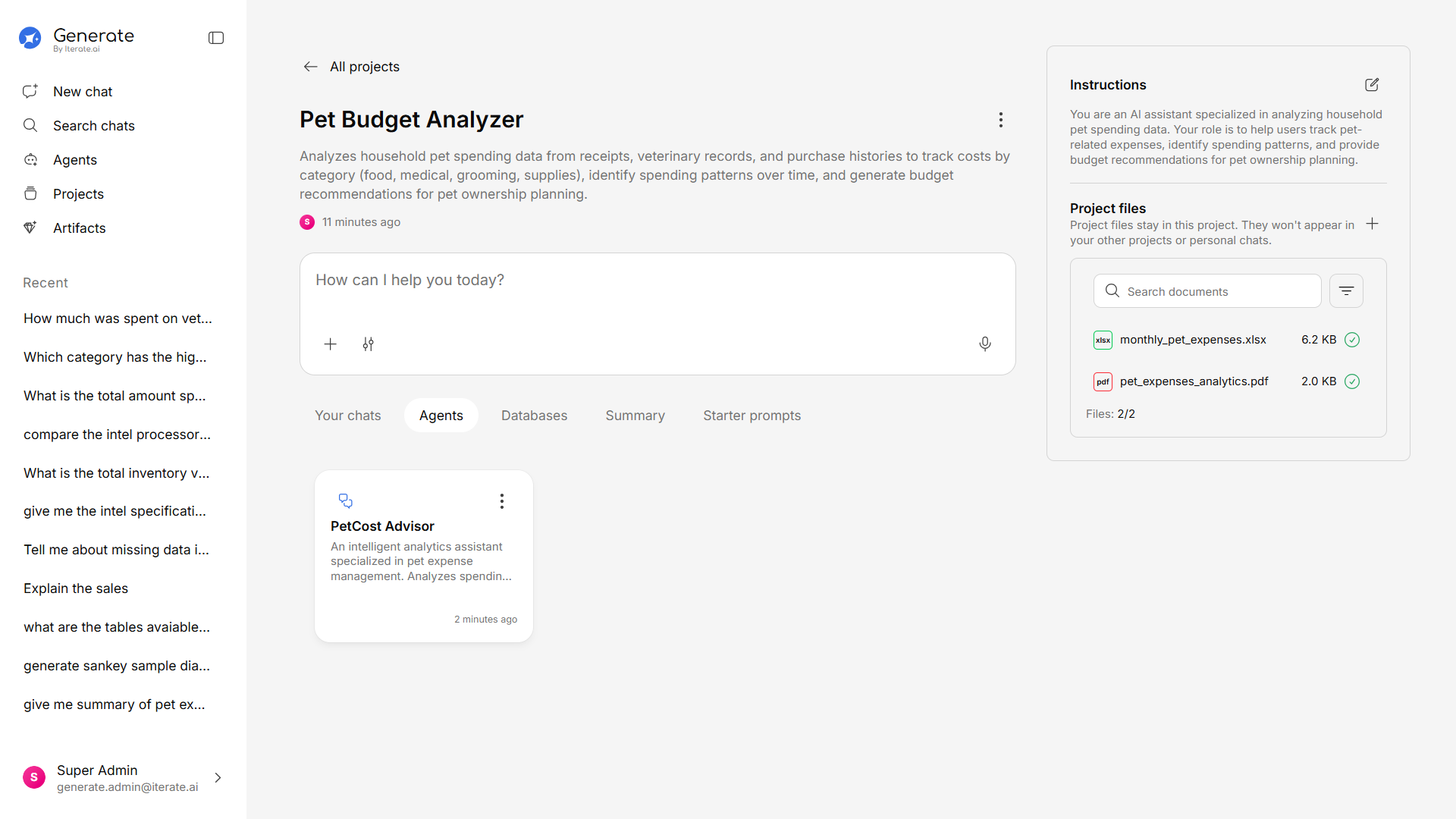
Agents
Agents associated with this project. You can:- View agents already attached to the project
- Add agents to the project from your agent library
- Remove agents that are no longer relevant
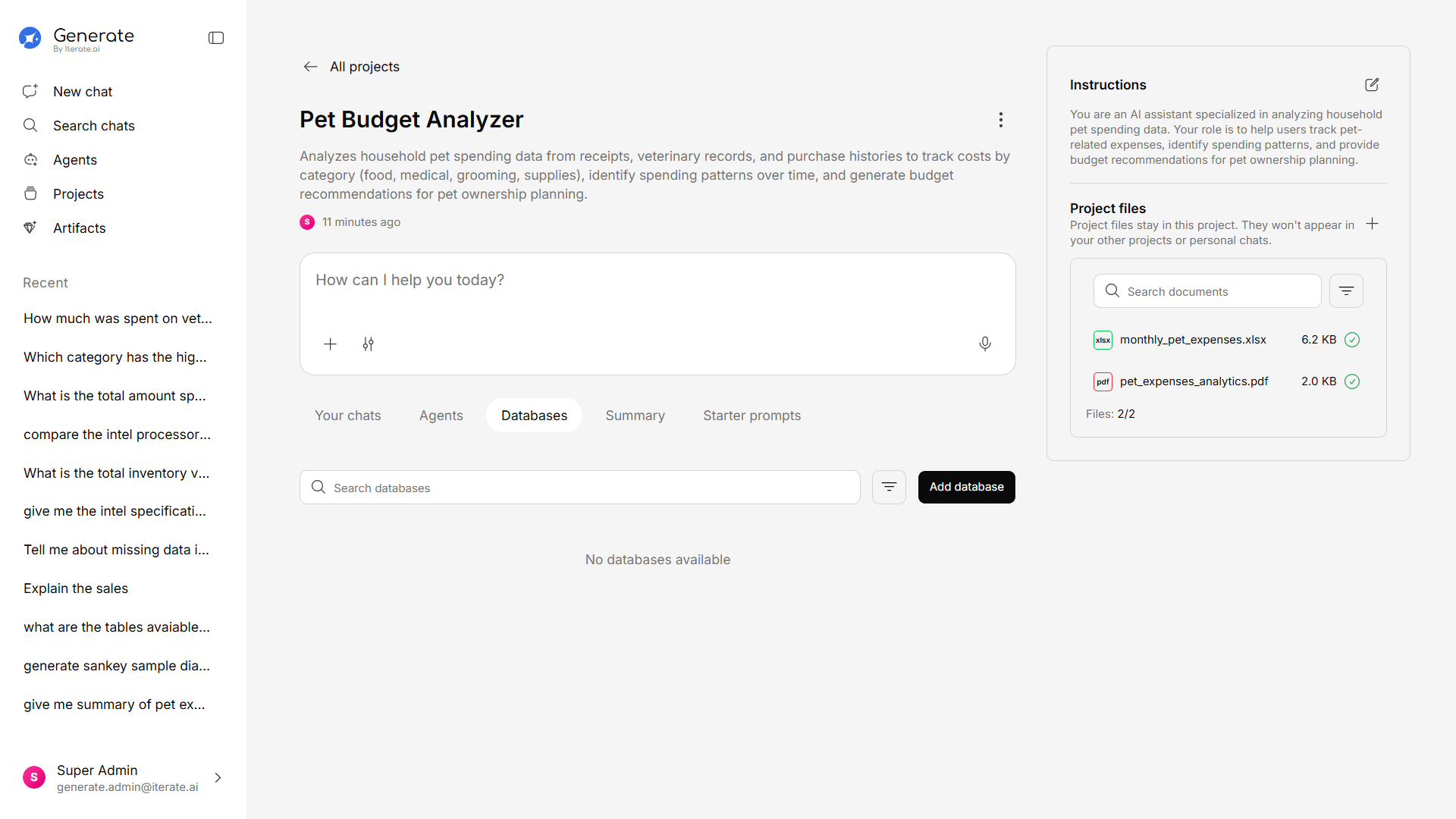
Databases
Databases connected to this project. Manage which databases are available when chatting within this project.- View connected databases with their type and table count
- Add new databases — connect a new database directly
- Edit or remove existing connections
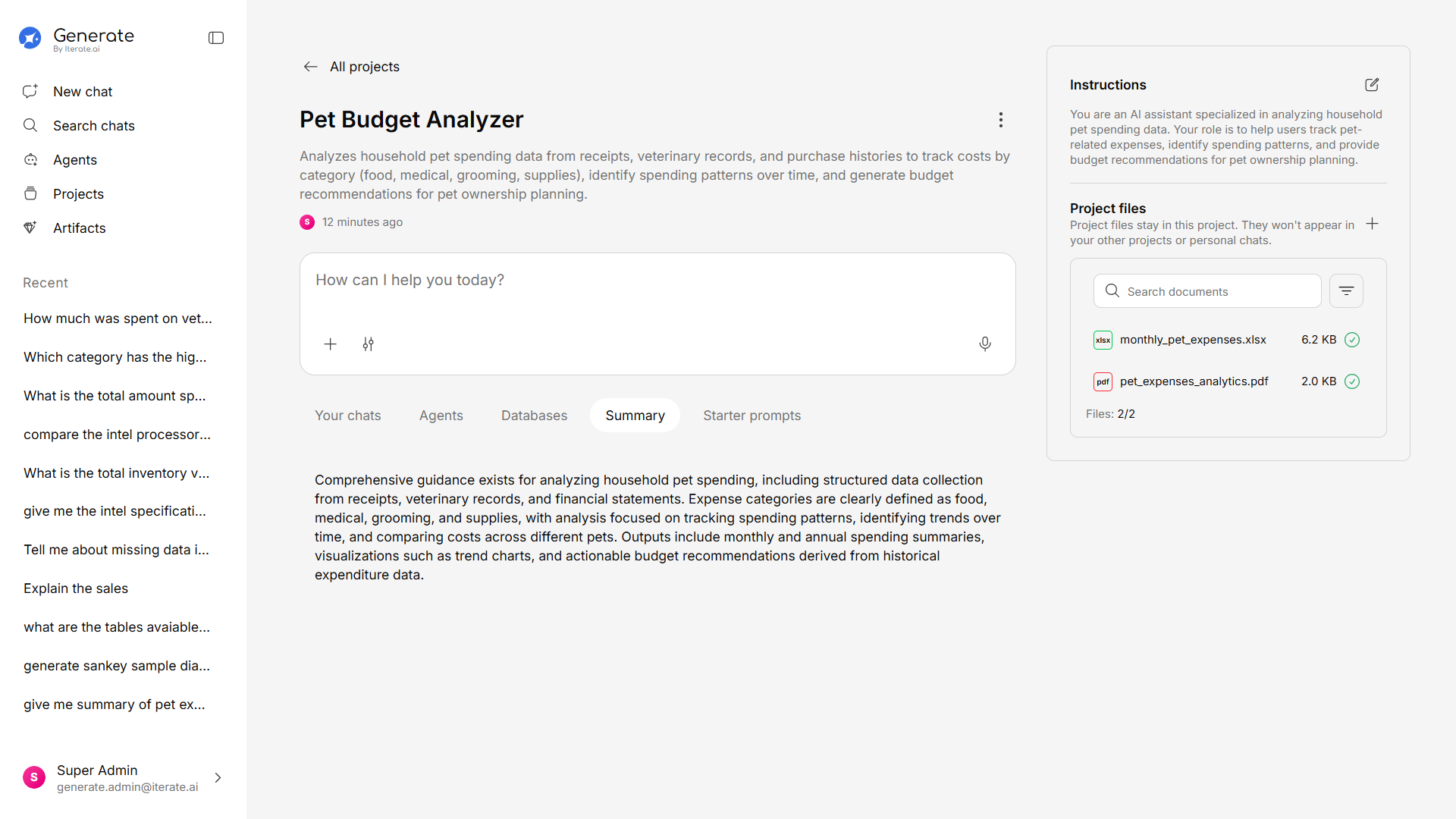
Summary
A high-level overview of the project including:- Number of documents uploaded
- Number of conversations
- Number of agents and databases
- Recent activity
Suggested Questions
AI-generated questions based on the project’s knowledge base. These help you discover what you can ask about and are a great starting point for new conversations.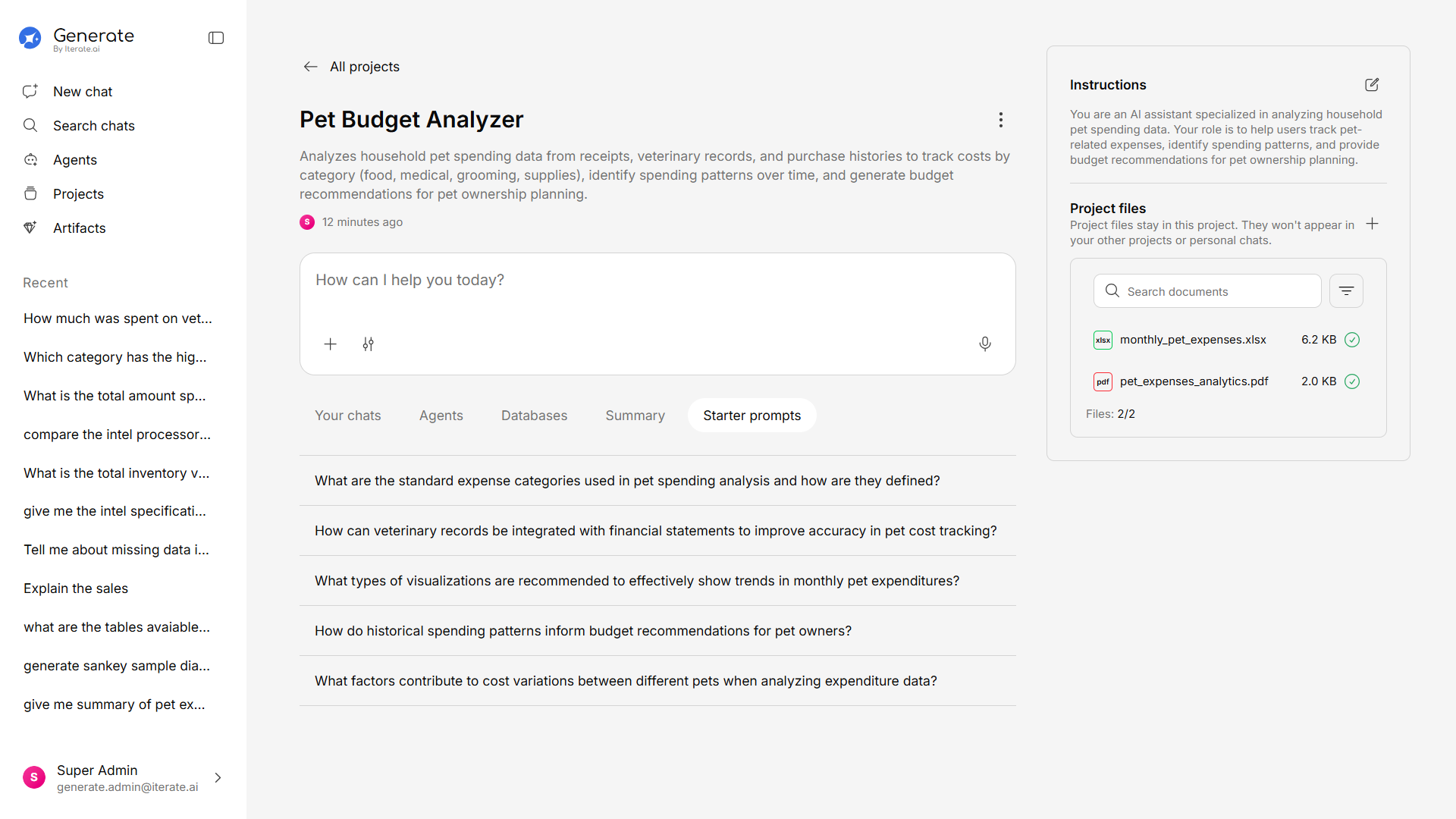
Project Instructions
Set custom instructions for the project by clicking the Instructions button. These instructions guide how the AI behaves within this project — for example, focusing on a specific domain or maintaining a particular tone.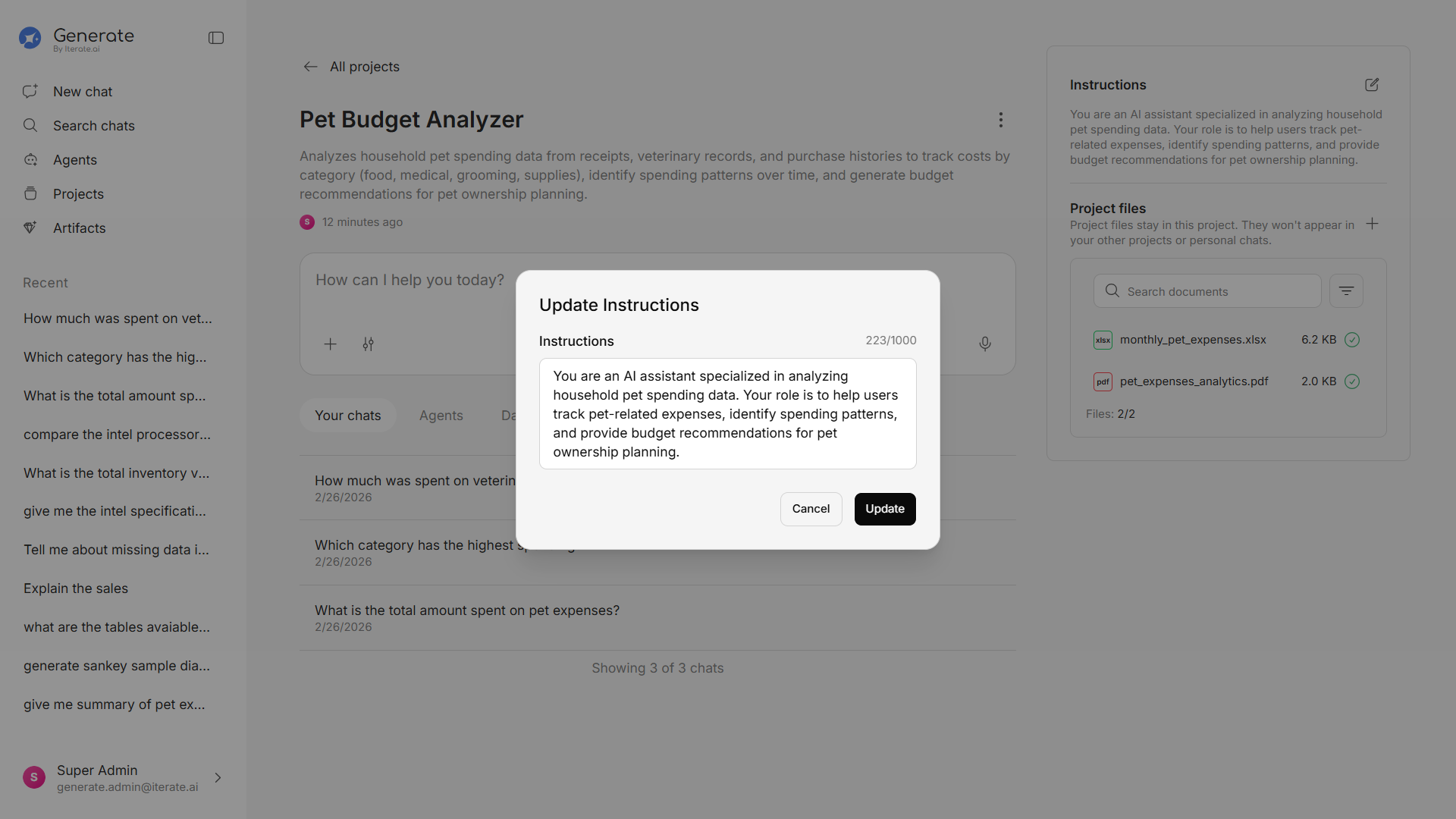
Project Actions
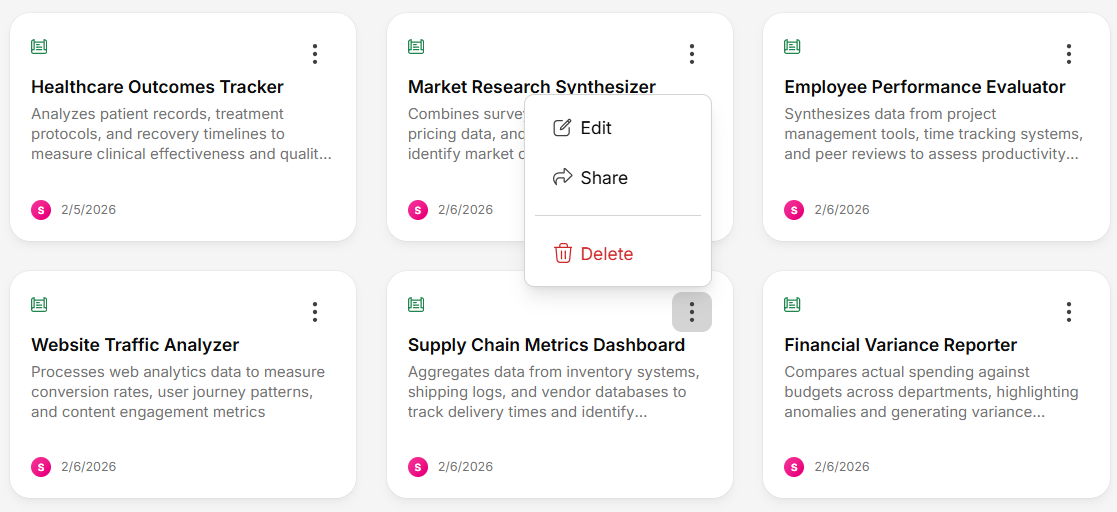
From the project detail view, you can:| Action | Description |
|---|---|
| Edit | Update the project name, description, or category |
| Share | Share with users or teams (learn more →) |
| Delete | Permanently remove the project and its contents |