

Attaching a File
Click the attachment icon
In the chat input area, click the paperclip icon (or drag and drop a file directly into the chat).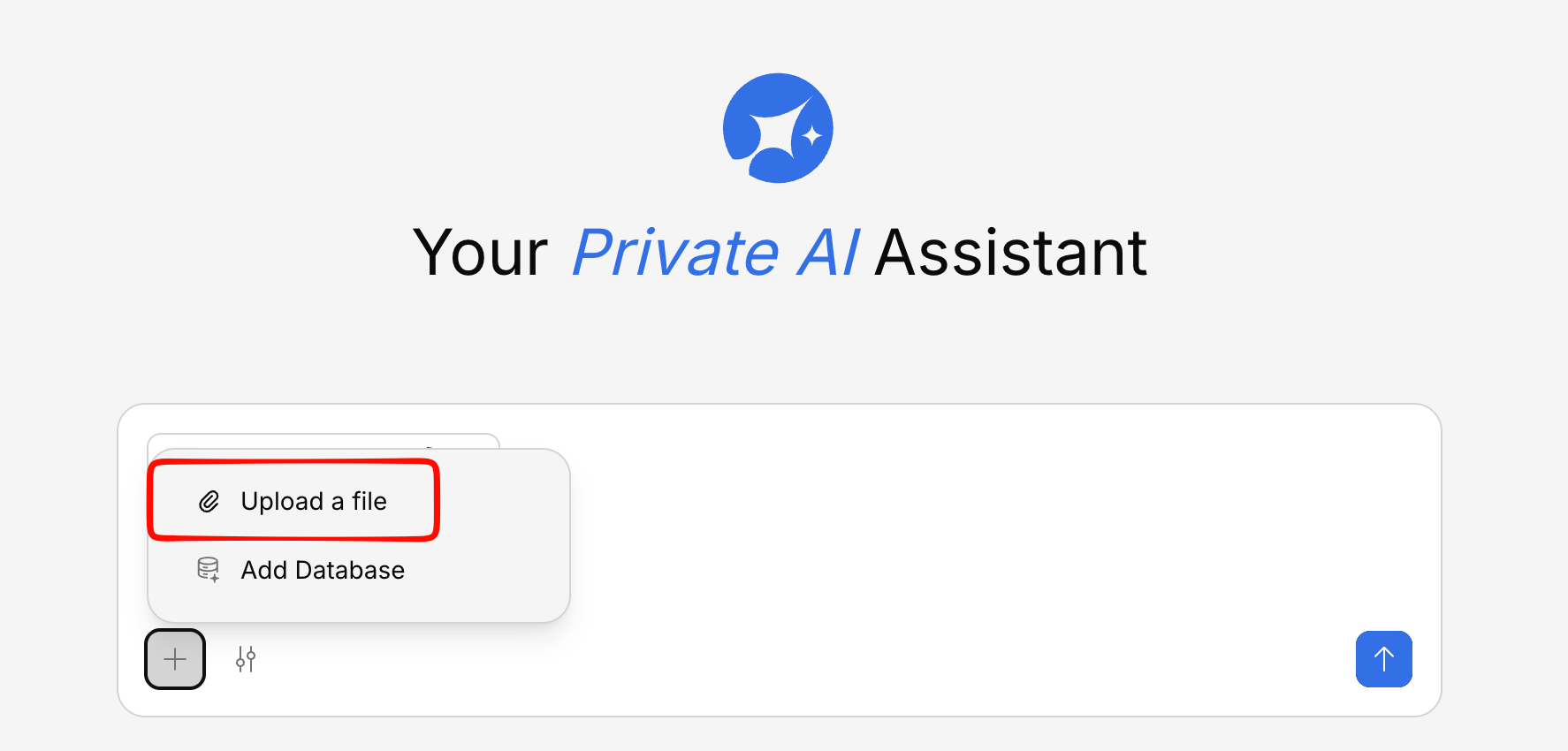
Select your file
Choose a file from your computer. You’ll see a preview of the attached file above the input area.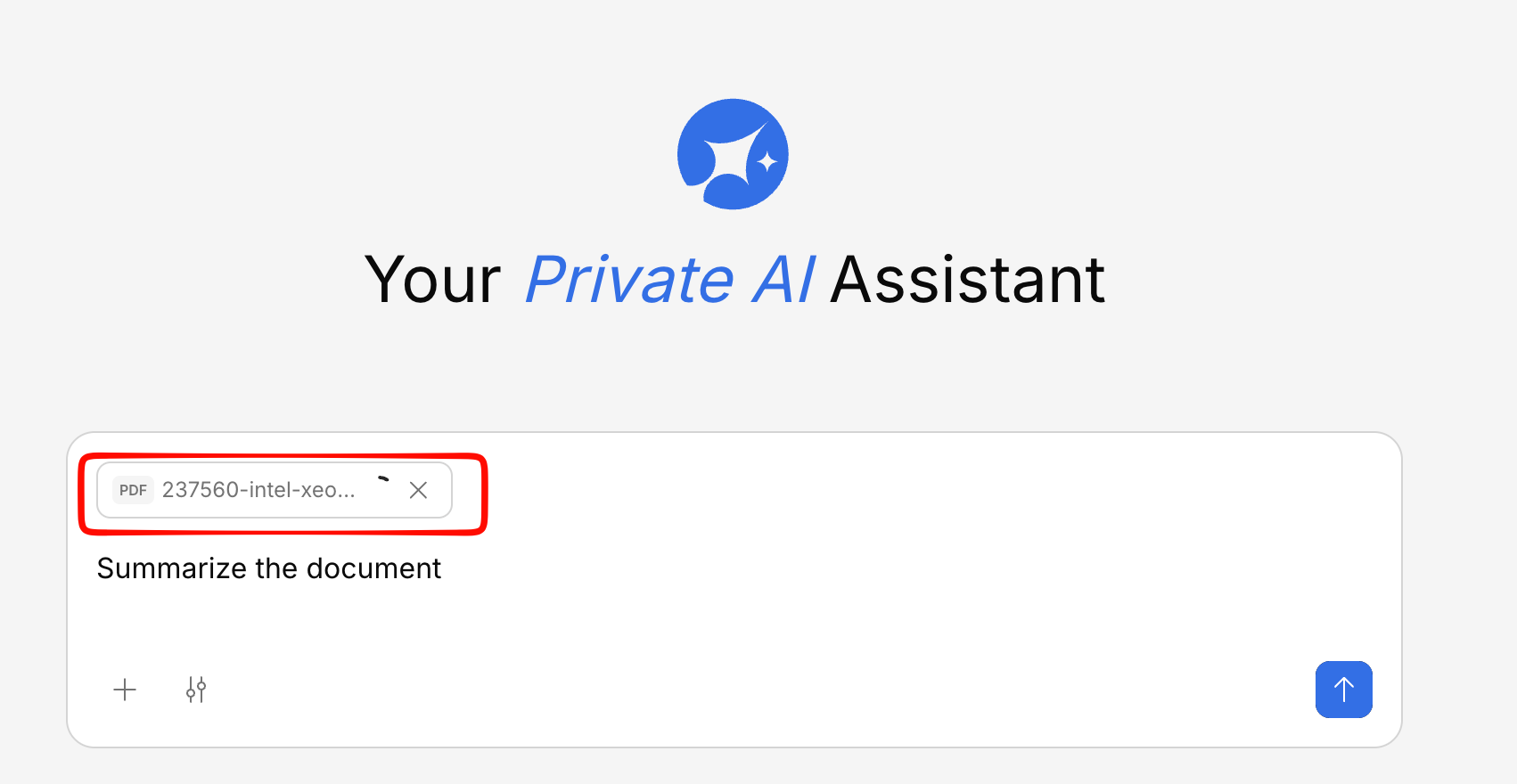
Ask your question
Type your question about the file and send. For example:
- “Summarize this document”
- “What are the key takeaways from this report?”
- “Extract all the action items from these meeting notes”
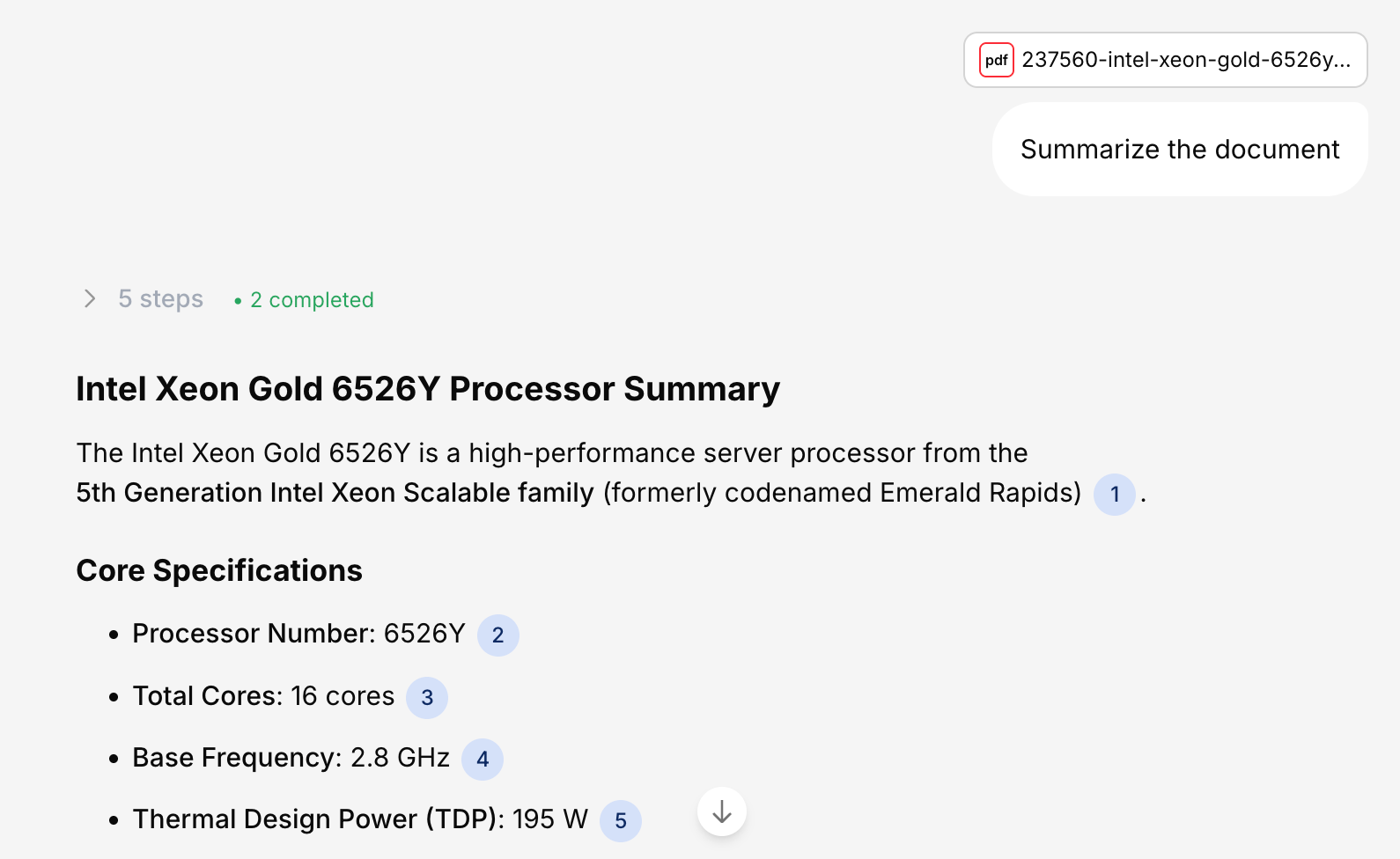
Processing time depends on document complexity—larger files with images and tables take longer to ingest, while simpler documents are ready in moments. Track ingestion progress via the loading indicator next to each file name.
Supported File Types
You can attach the following file types:| Type | Extensions |
|---|---|
| Documents | PDF, DOCX, TXT |
| Spreadsheets | XLSX, CSV |
| Presentations | PPTX |
File Size Limits
Individual files can be up to 200 MB. For very large files, they’re automatically handled using multipart uploads so you don’t experience timeouts.Tips for File Attachments
Be specific about what you want
Rather than just attaching a file, tell Generate what you’re looking for — a summary, specific data points, comparisons, etc.
Combine with knowledge base
Attach a new document and ask Generate to compare it with information already in your knowledge base.
Files attached to a chat are processed for that conversation only. To make a file permanently searchable across all conversations, upload it to the Knowledge Base instead.