
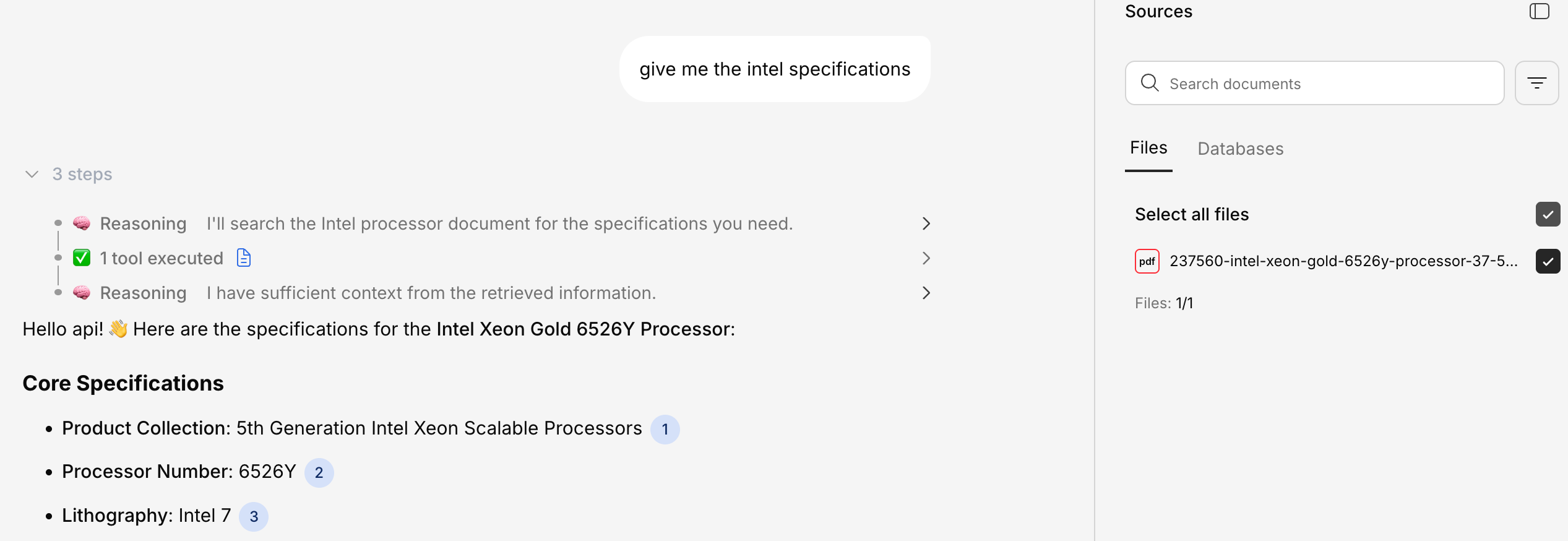
Opening the Panel
Click the Knowledge Base icon in the chat view to toggle the panel open or closed. It slides in from the right side of the screen.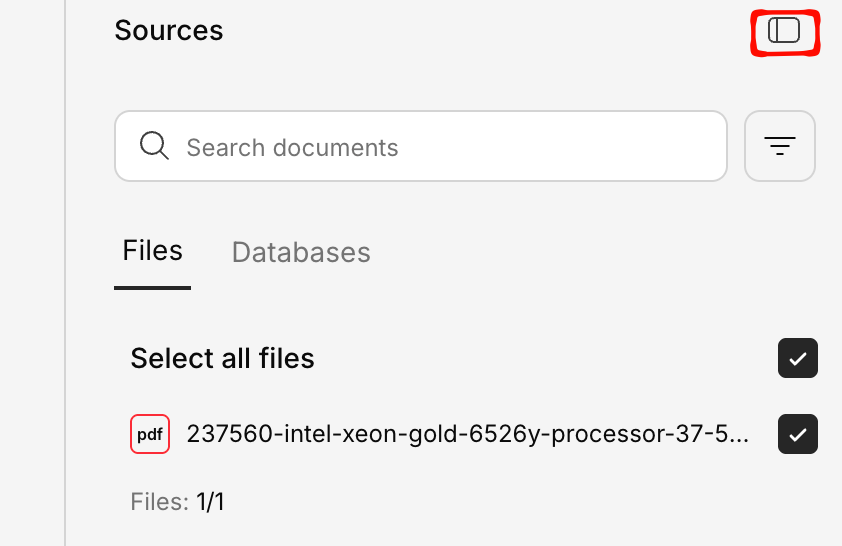
Tabs
The panel has two main tabs:Files Tab
Shows all documents in the current knowledge base (or project-scoped documents if you’re in a project).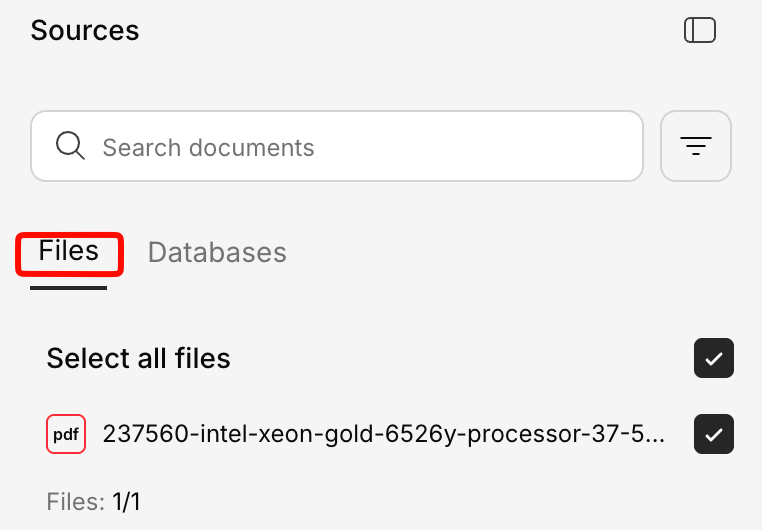
- File icon — Color-coded by file type (PDF, DOCX, XLSX, etc.)
- File name
- Processing status — Ready, Processing, or Error
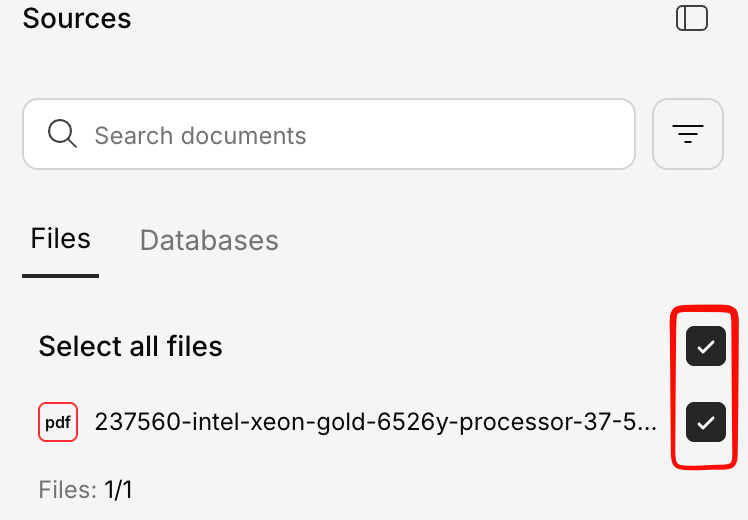
- Checkbox — Select/deselect files to include in or exclude from queries
Databases Tab
Shows all connected databases available for the current conversation.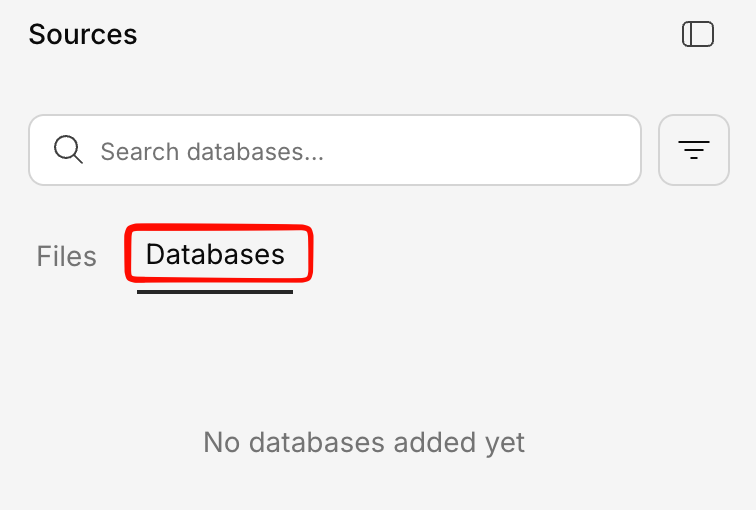
- Database icon — Type-specific (MySQL, PostgreSQL, BigQuery, etc.)
- Database name
- Table count — Number of tables available
- Connection status
- Checkbox — Enable/disable specific databases for queries
Searching & Filtering
Search Files
Use the search bar at the top to quickly find files by name.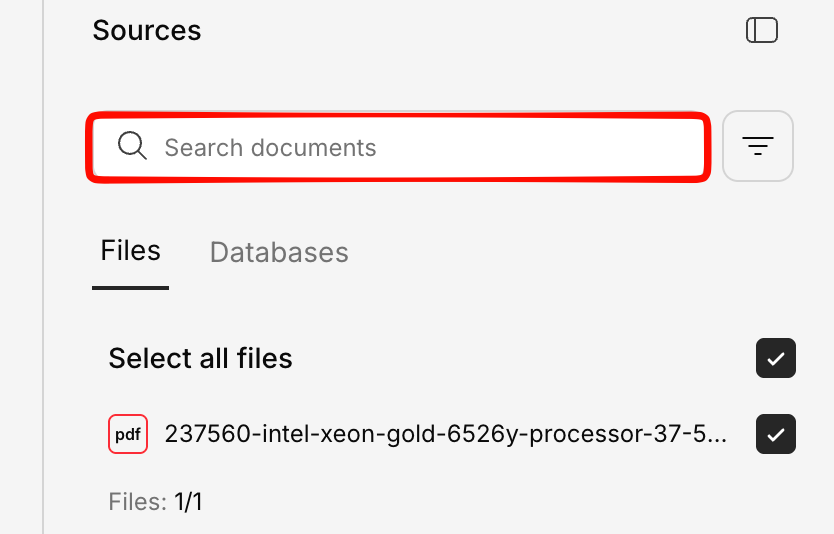
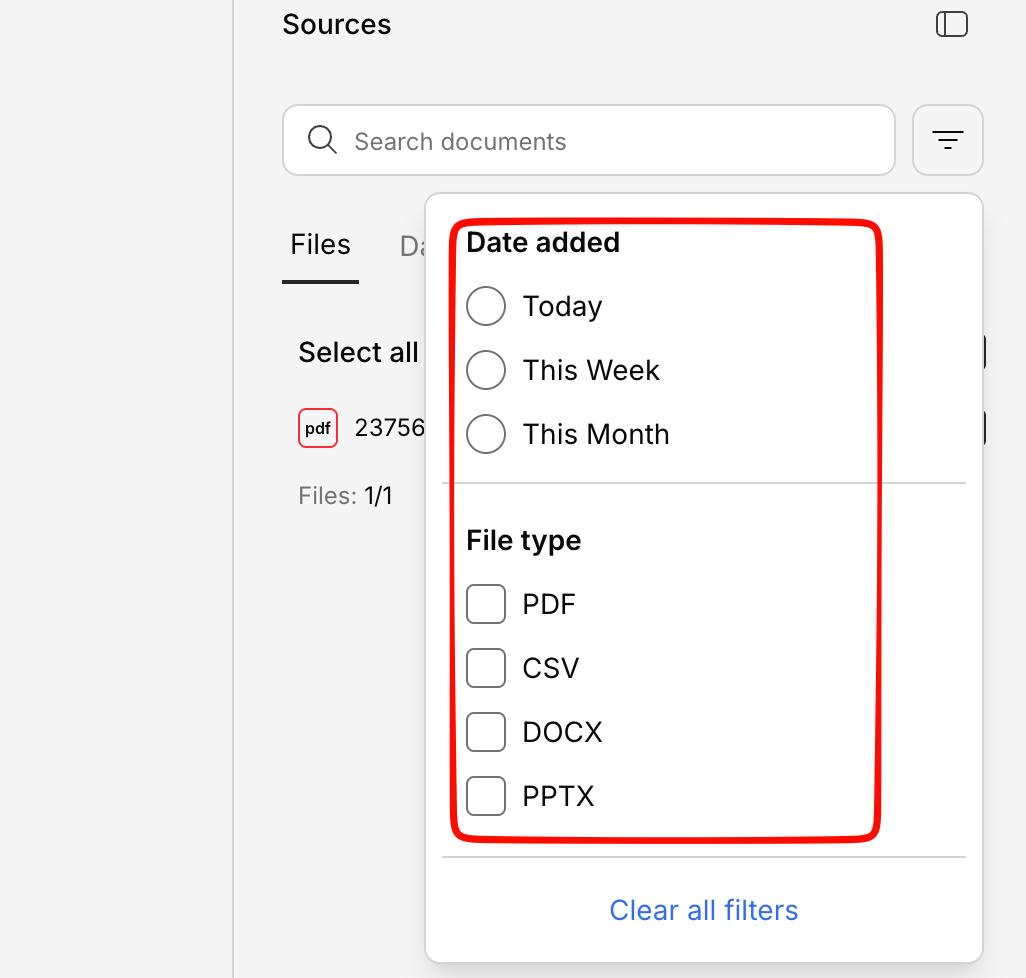
Filters
Click the filter icon to narrow down your file list:| Filter | Options |
|---|---|
| Date Added | Today, This Week, This Month |
| File Type | PDF, DOCX, TXT, CSV, XLSX, PPTX |
| File Size | Less than 1 MB, 1–10 MB, More than 10 MB |
Selecting & Excluding Files
By default, all files are included when the AI searches for context. You can:- Deselect specific files — Uncheck files you don’t want included in responses
- Select All / Deselect All — Bulk toggle all files at once
File Preview
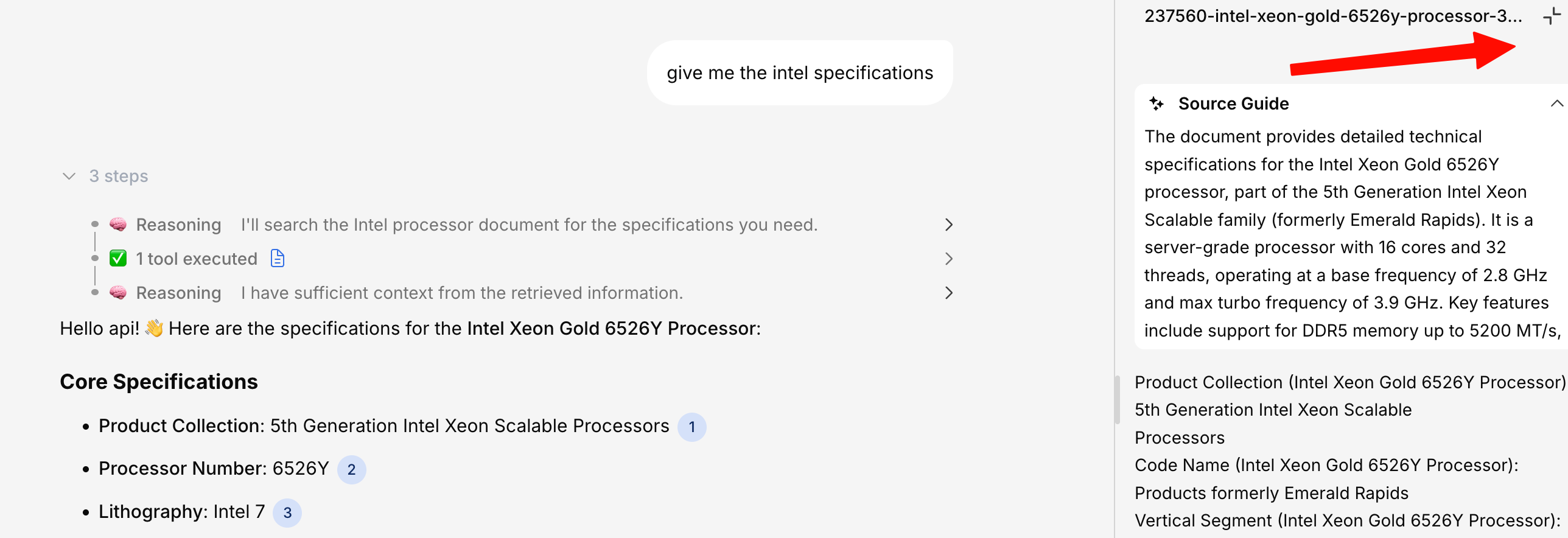
Click on any file to expand it and see:- Full extracted content — The text that was extracted from the document
- Highlighted sections — If a citation referenced this file, the relevant section is highlighted
- Suggested questions — AI-generated questions you can ask about this specific file
- Ask about this file — A quick input to ask a question scoped to just this document
Uploading from the Panel
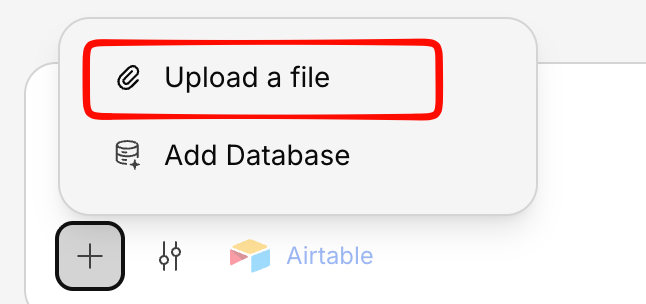
You can upload new files directly from the panel without leaving your conversation. Click the Upload button and select files from your computer.