

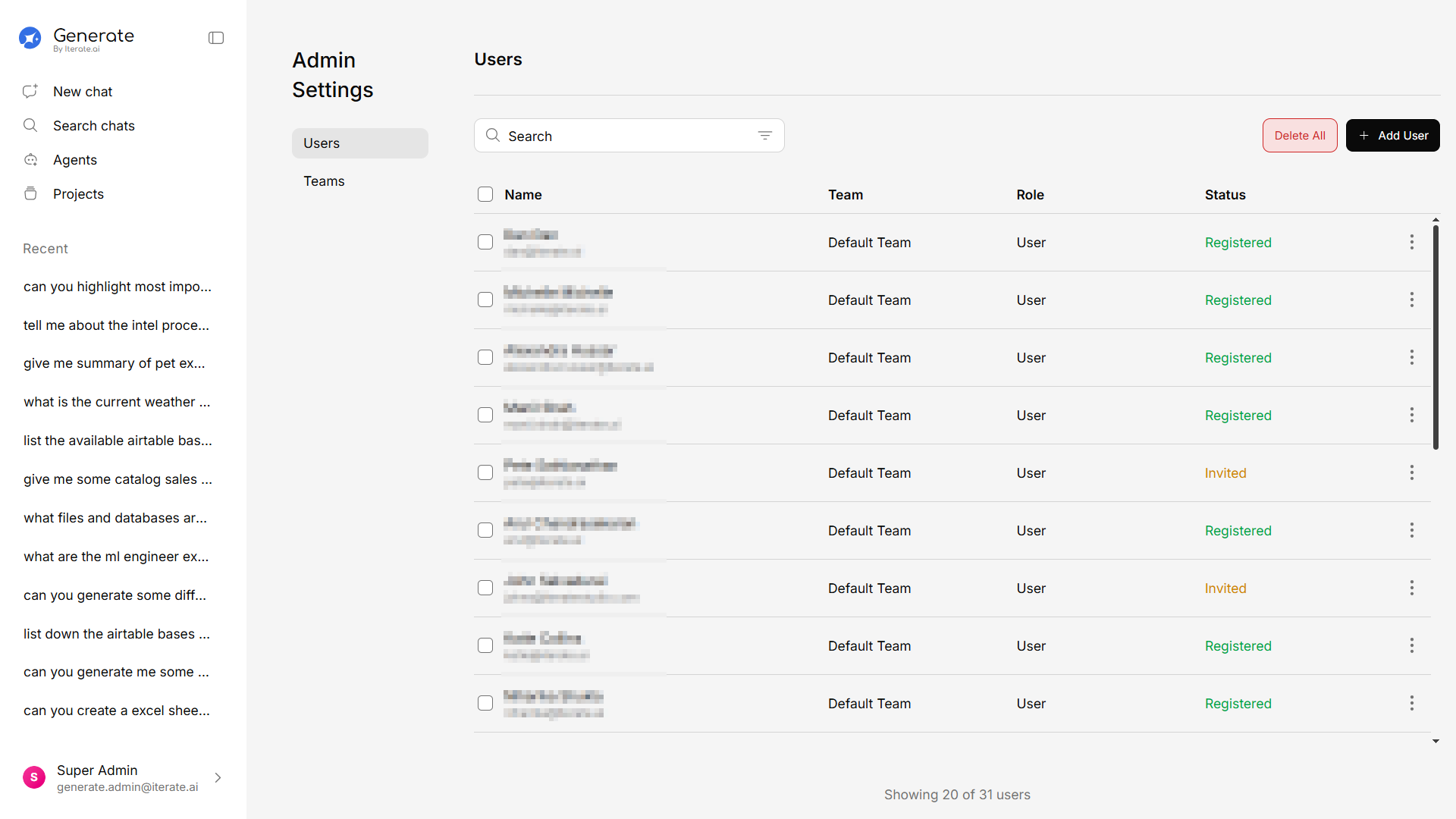
Viewing Users
The Users section shows all accounts in your organization:- Name and email — User identity
- Team — Which team(s) the user belongs to
- Role — Admin, member, or viewer
- Status — Active, invited, or deactivated
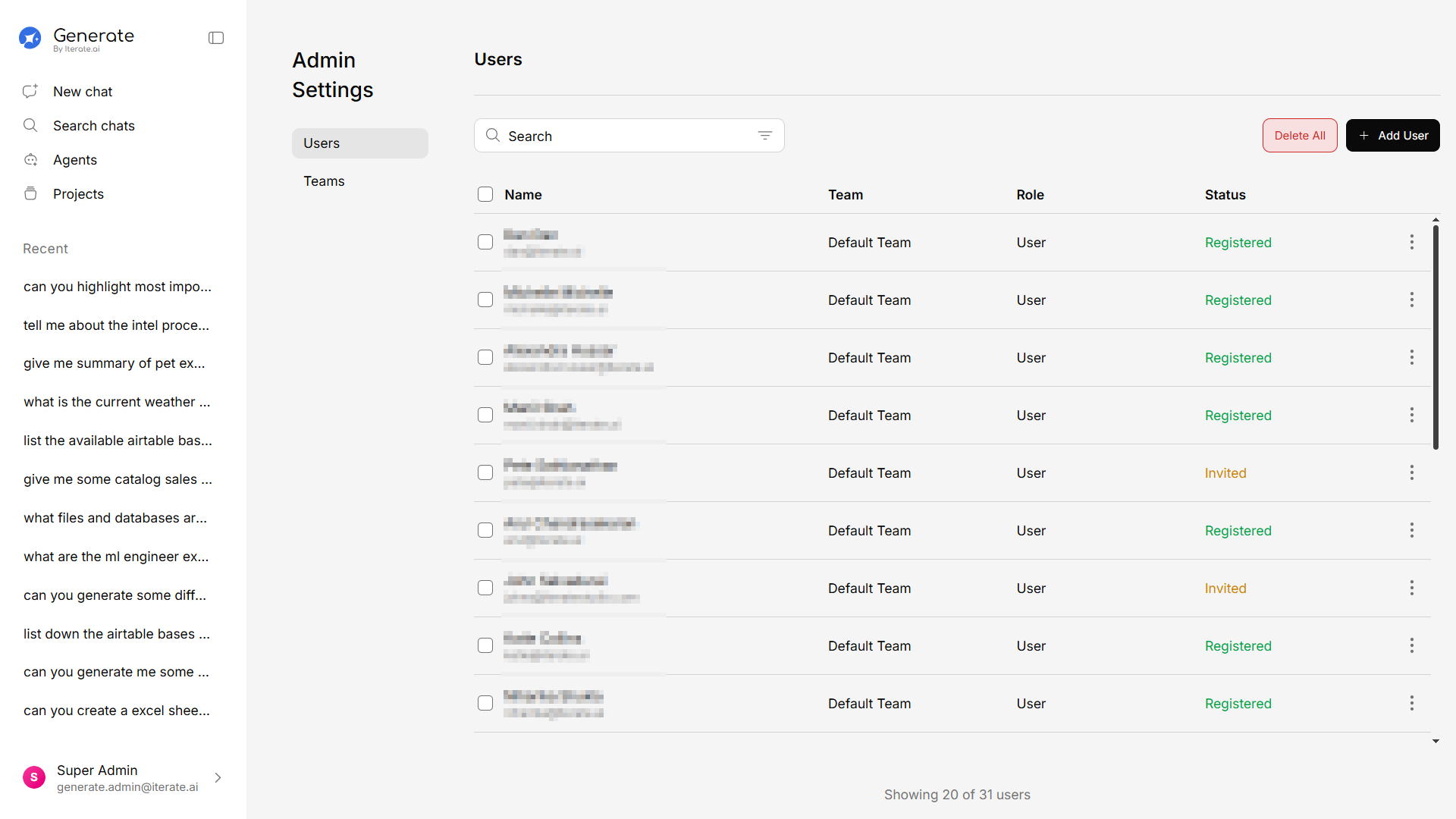
Inviting New Users

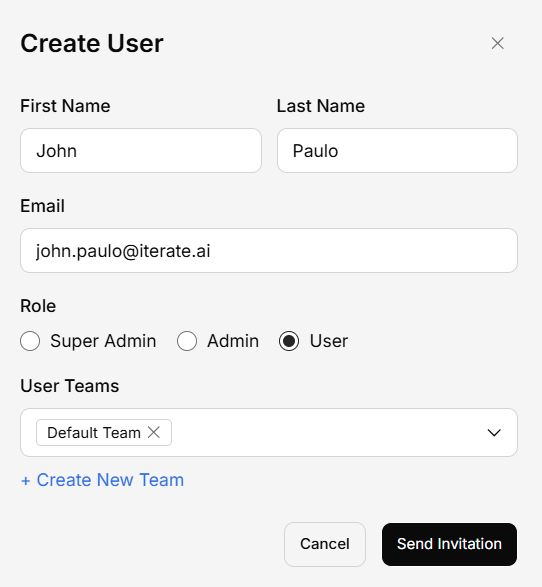
Set their role
Choose a starting role template, or build a custom set of permissions:
- Admin — Full access to every feature
- Editor — Can create and edit content
- Viewer — Can view and read content only
- Custom — Hand-pick specific permissions across categories like New chat, Chats, Agents, Projects, Skills, Connectors, Settings, and Admin settings
Managing Existing Users
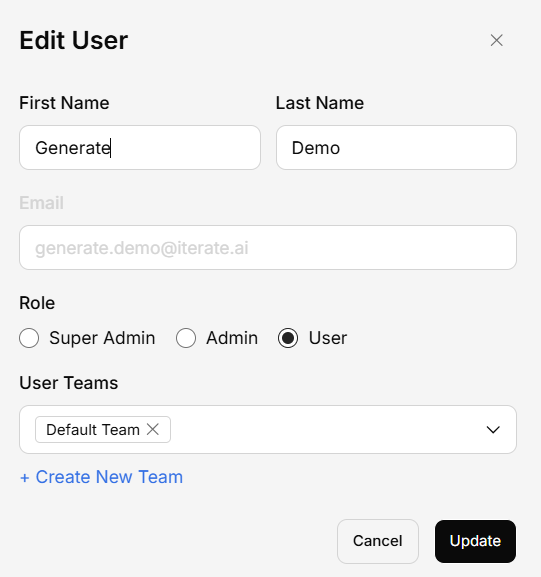
Click on any user to:- Change their role — Promote or adjust permissions
- Reassign teams — Move users between teams
- Deactivate account — Disable access without deleting the account
- Delete account — Permanently remove the user
User Roles
| Role | Chat | Agents | Projects | Knowledge Base | Admin Panel |
|---|---|---|---|---|---|
| Admin | Full | Full | Full | Full | Full |
| Editor | Full | Full | Full | Full | No access |
| Viewer | Read only | View only | View only | View only | No access |
| Custom | Depends on selected permissions |
Re-inviting a Deactivated User
If you try to invite an email address that belongs to a previously deactivated user, Generate asks you to confirm: