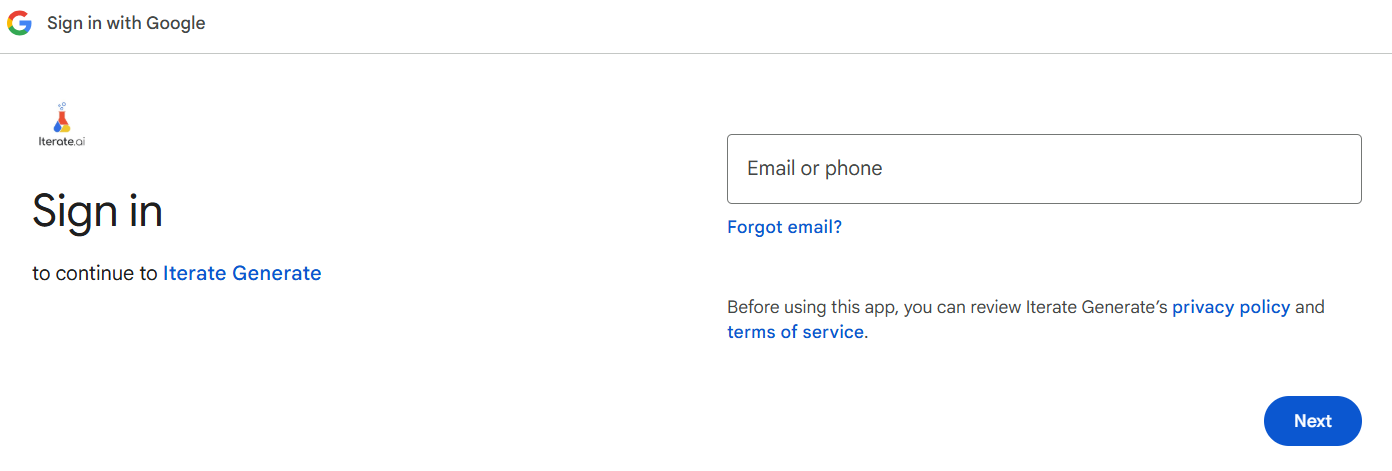

Each Google Workspace service requires individual authentication. You’ll need to connect and authorize each service separately (Drive, Gmail, Calendar, Sheets, etc.).
Available Google Workspace Services
Generate supports integration with the following Google Workspace services:- Google Drive — Access and sync files from your personal Drive and team shared drives
- Google Docs — Search and reference your documents with AI-powered access
- Google Sheets — Query and analyze spreadsheet data through conversational AI
- Google Slides — Make your presentation content searchable and accessible
- Gmail — Search, summarize, and extract information from your emails
- Google Calendar — Query your schedule and meeting information conversationally
- Google Meet — Access meeting information and participant data
- Google Forms — Analyze form responses and survey data through AI
- Google Analytics — Query website analytics data using natural language
- YouTube — Access video metadata, channel data, and analytics
Connecting a Google Workspace Service
Each Google Workspace service must be connected individually. Below is an example using Google Drive—the same process applies to all other Google Workspace services.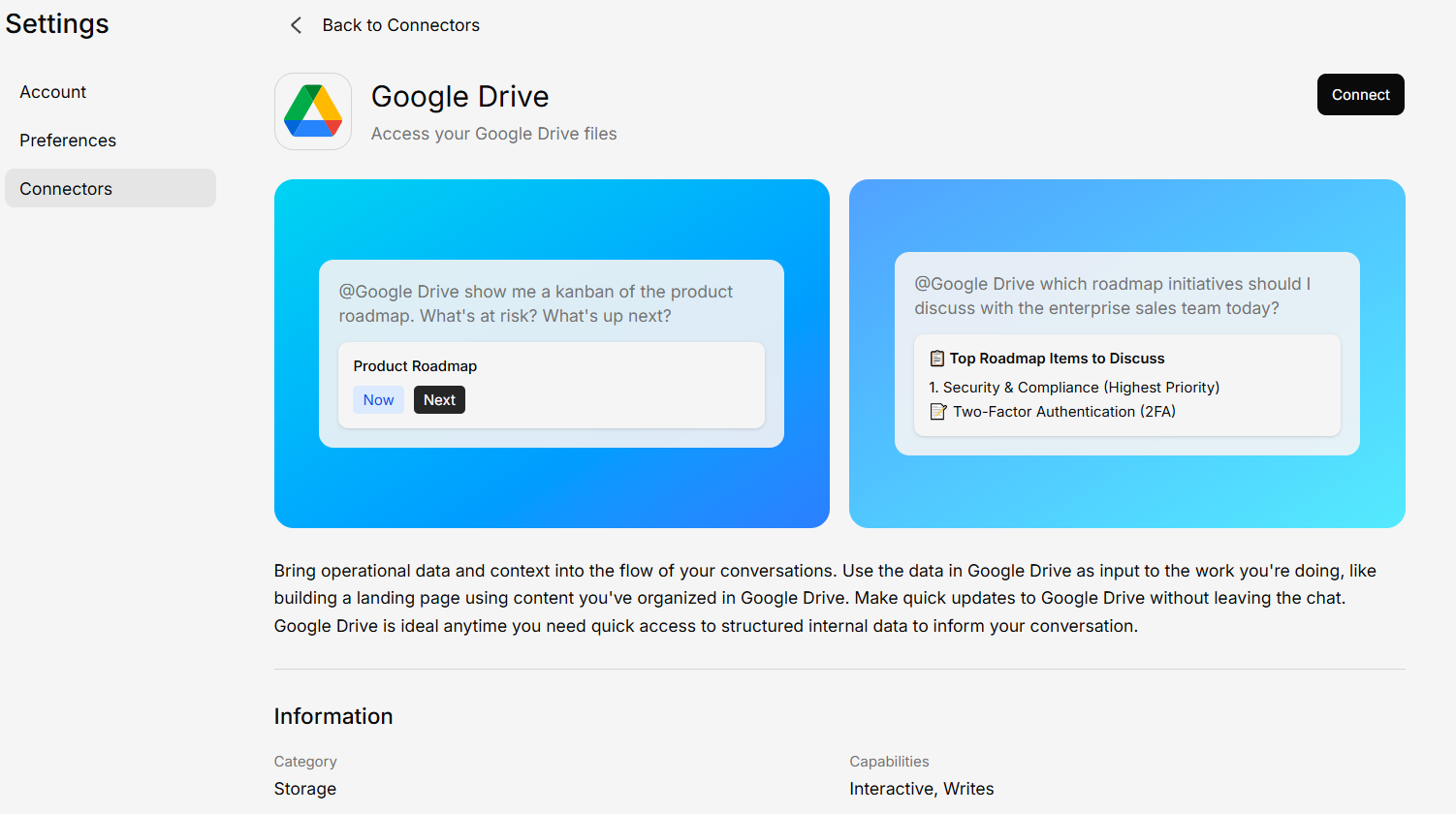
Open Connectors and select your Google service
Navigate to the Connectors section and choose the specific Google Workspace service you want to connect (Drive, Gmail, Calendar, Sheets, etc.).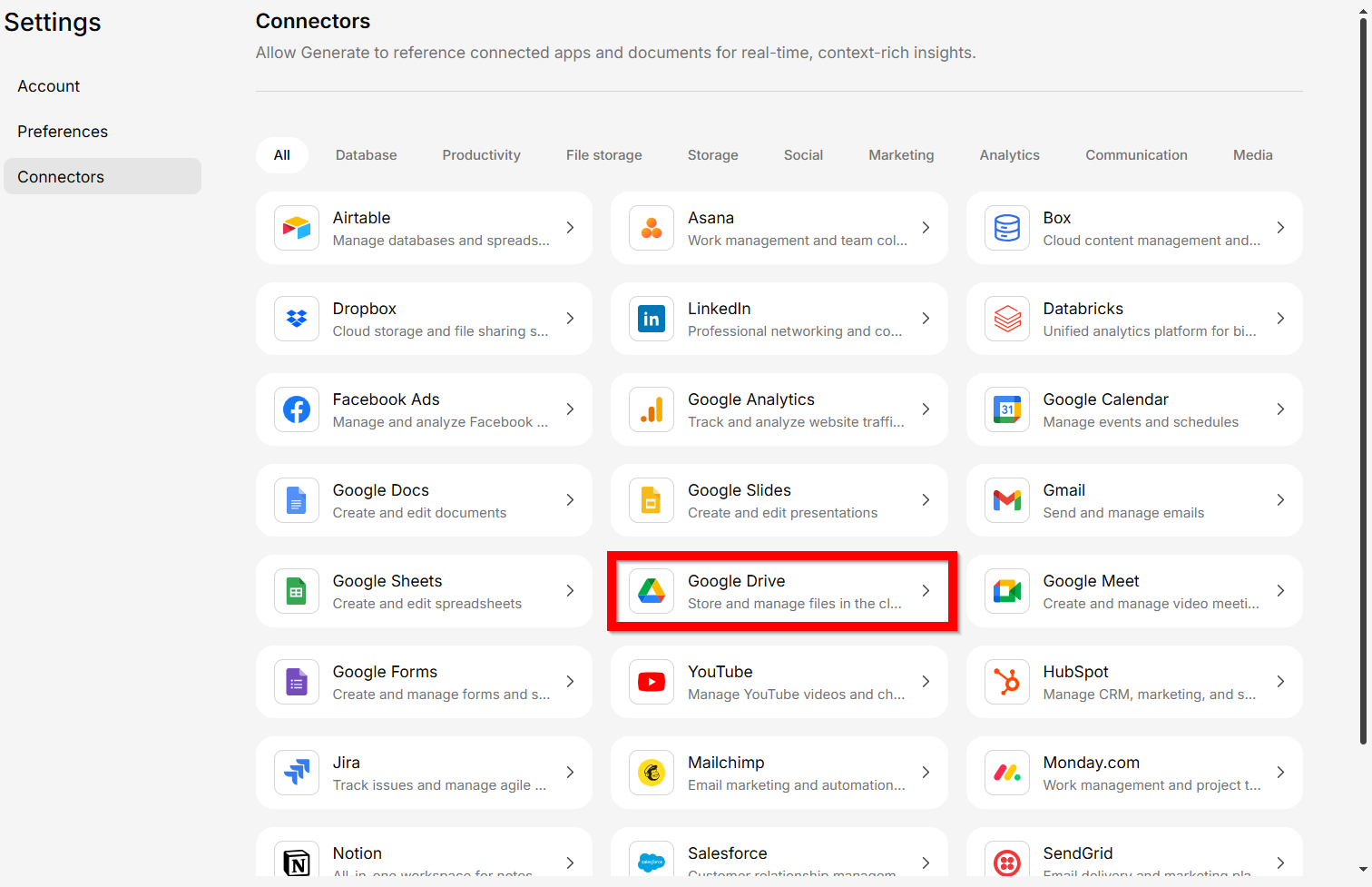
Sign in with your Google account
You’ll be redirected to Google’s sign-in page. Log in and grant Generate permission to access that specific Google Workspace service.