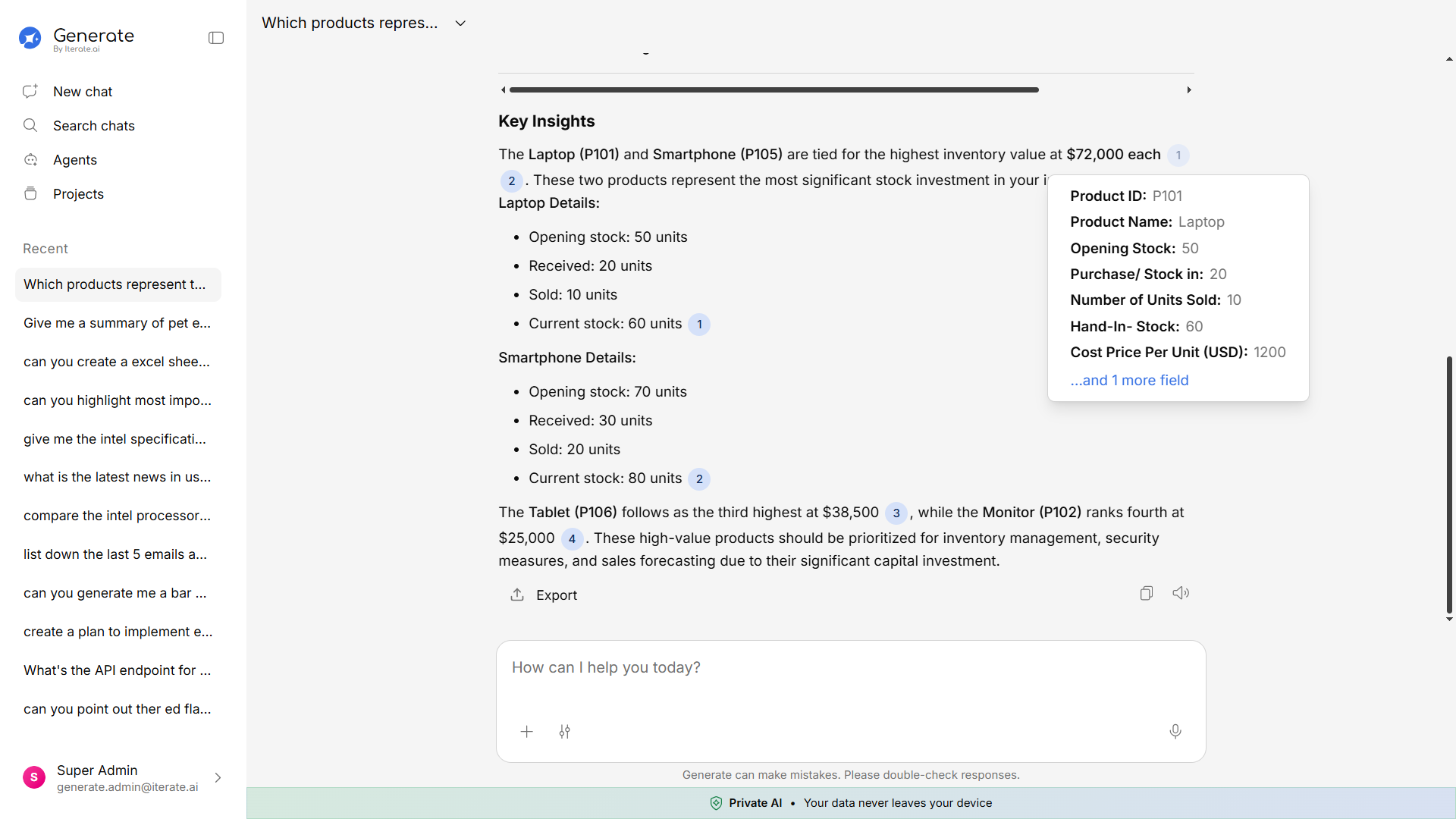

Starting a New Chat
Click 'New Chat'
From the sidebar, click the New Chat button at the top. This opens a fresh conversation.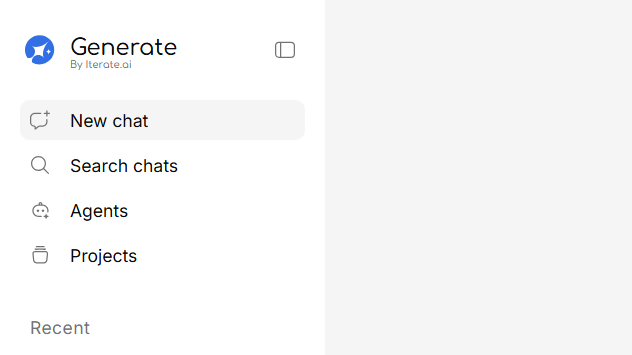
Upload Document and Type your Question
In the message box at the bottom, type anything you’d like to ask. For example: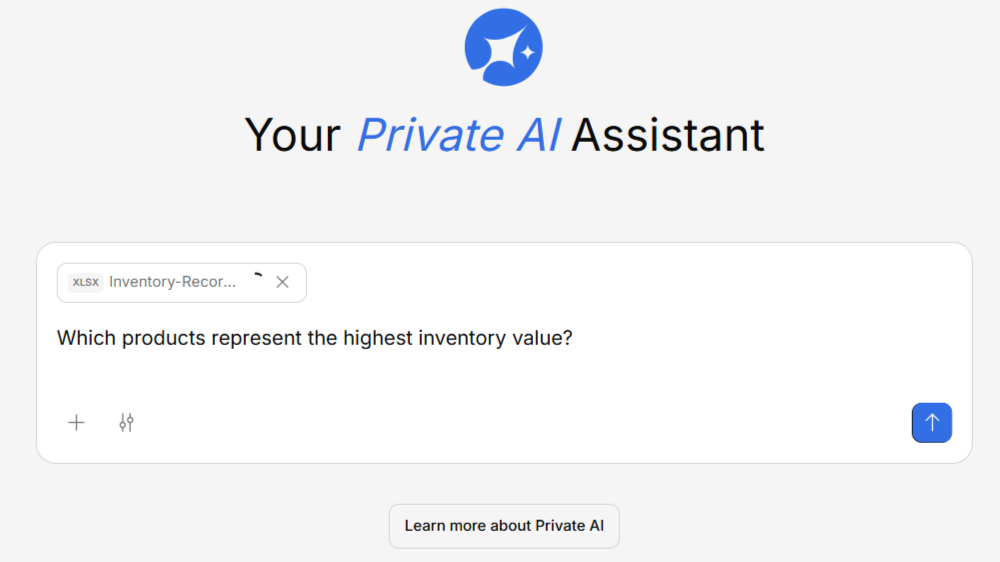
- “What is our company’s refund policy?”
- “Summarize last quarter’s sales report”
- “Help me draft an email to a client about project delays”
Send your message
Press Enter or click the send button. Generate will search your knowledge base for relevant information and respond with an answer.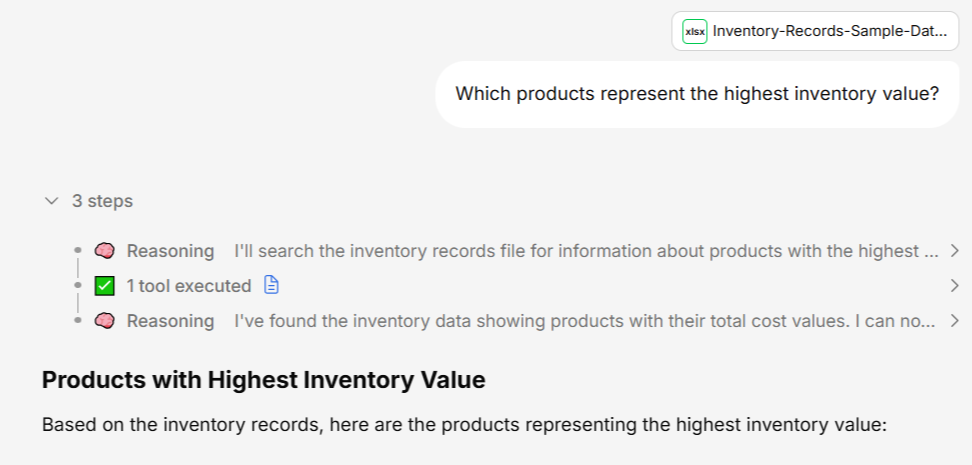
Tips for Better Answers
Be specific
Instead of “Tell me about sales”, try “What were our Q3 2024 sales numbers for the North America region?”
Provide context
If you’re asking about a specific document or topic, mention it by name so Generate knows where to look.
Use follow-ups
Don’t start a new chat for every question. Follow-up questions in the same conversation get better answers because Generate has context.
Attach files
Drop a file into the chat to ask questions about it directly — no need to upload it to the knowledge base first.
What You’ll See
When Generate responds, you’ll notice:- The answer — A clear, natural-language response to your question
- Sources — References to the documents or data that the answer was drawn from, so you can verify and dig deeper
- Suggestions — Occasionally, Generate will suggest follow-up questions you might find useful