Generate Enterprise is designed to be clean and intuitive. Here’s a walkthrough of the main areas you’ll interact with.
Main Layout
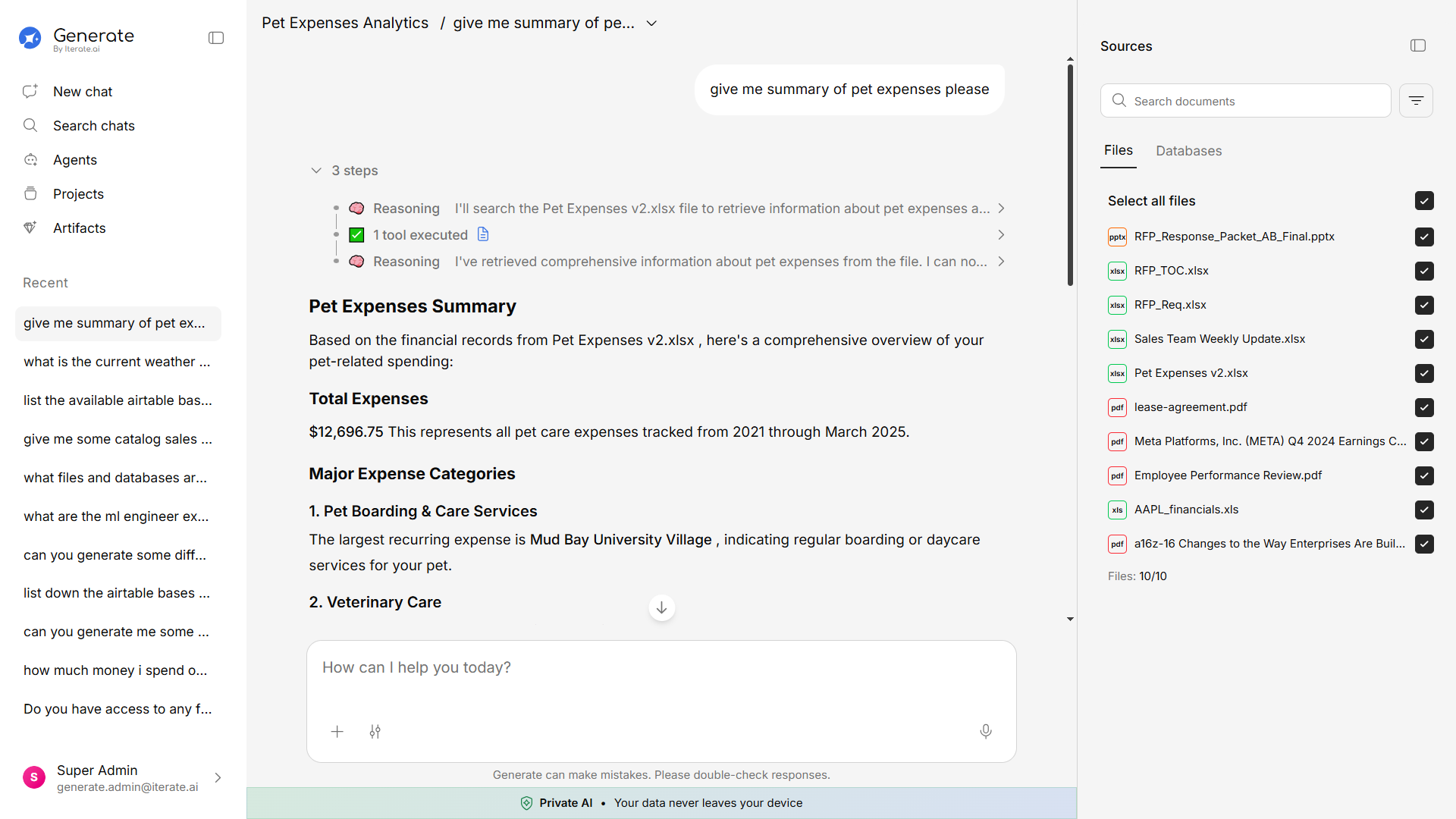
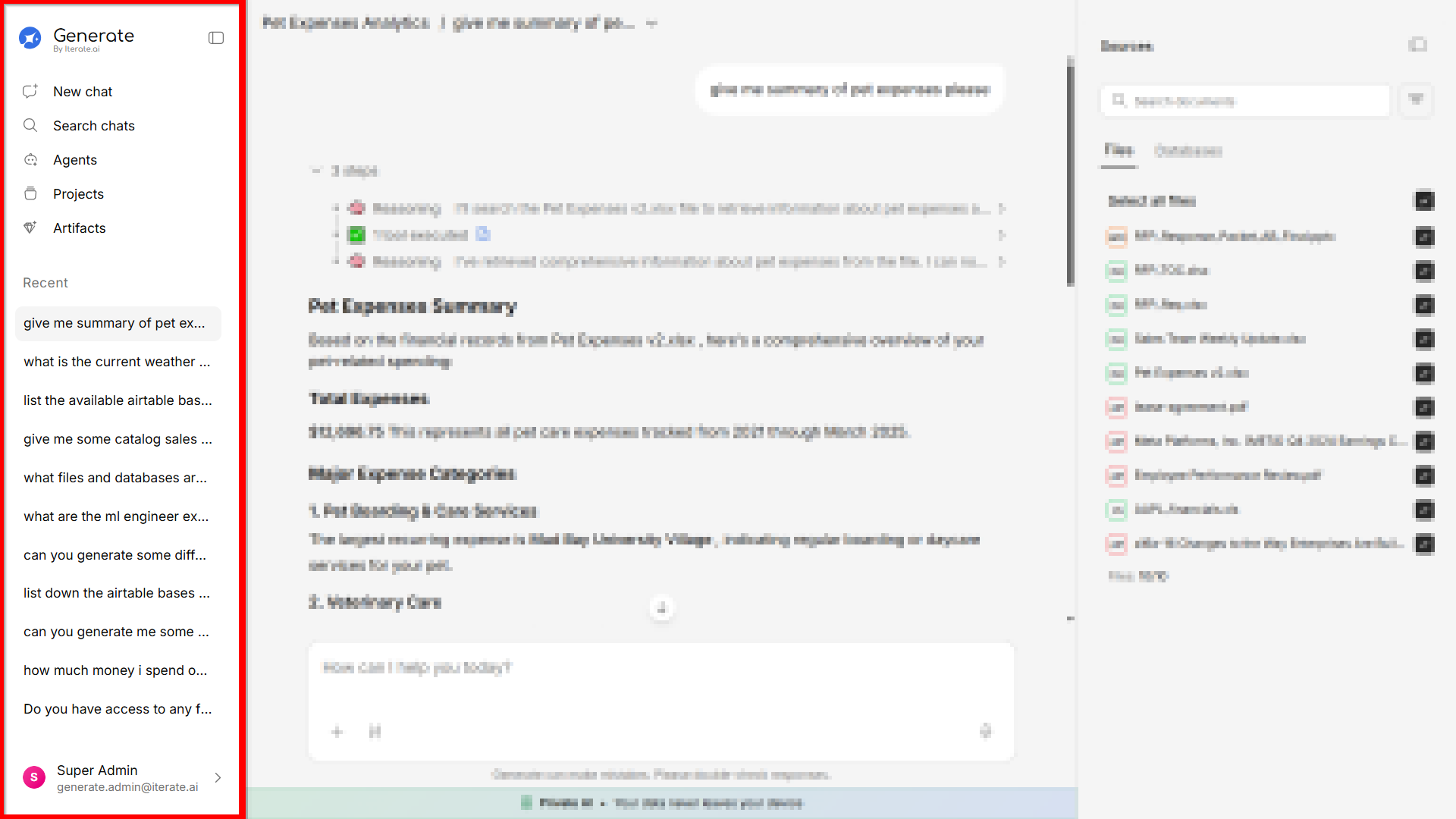
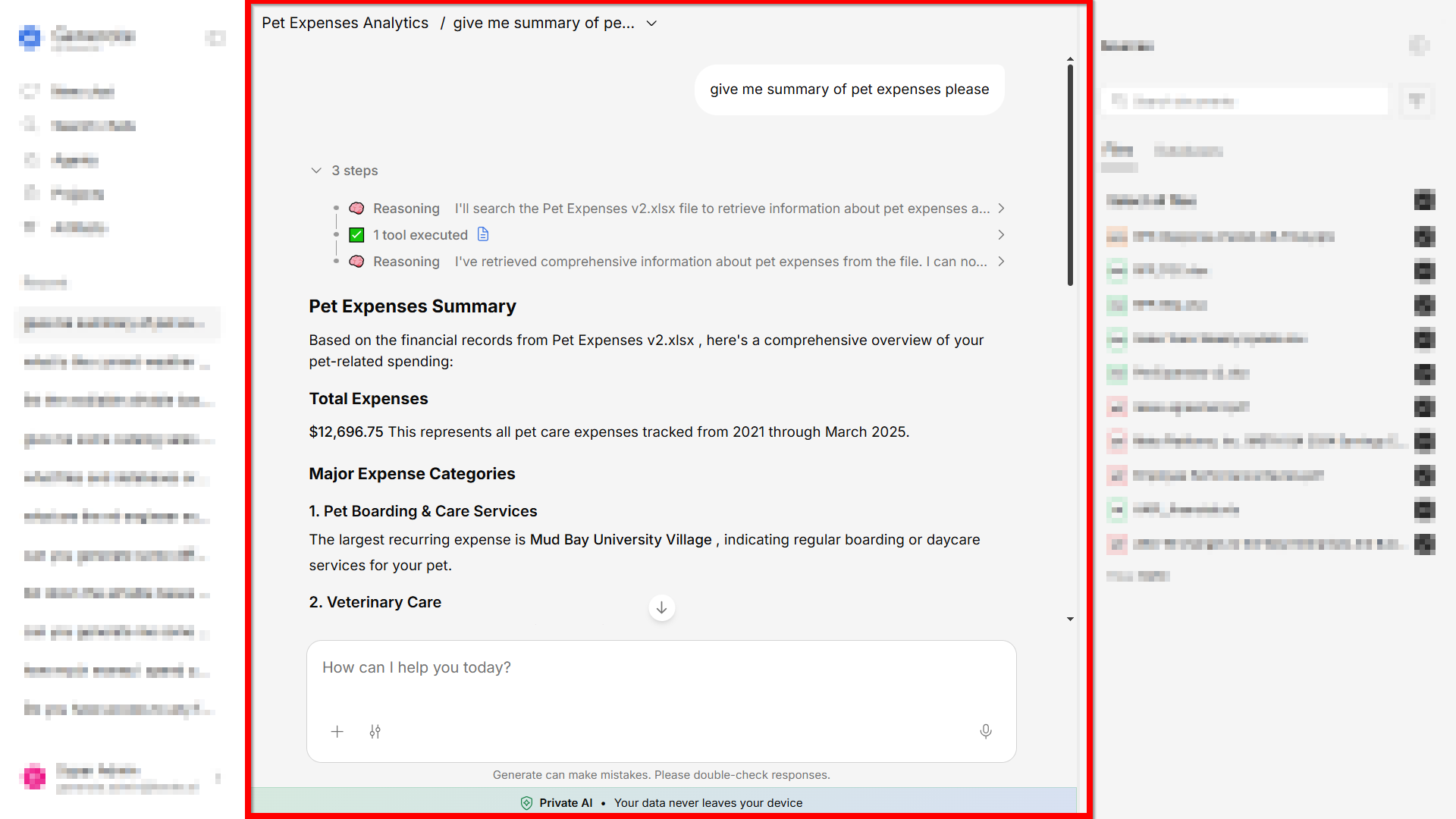
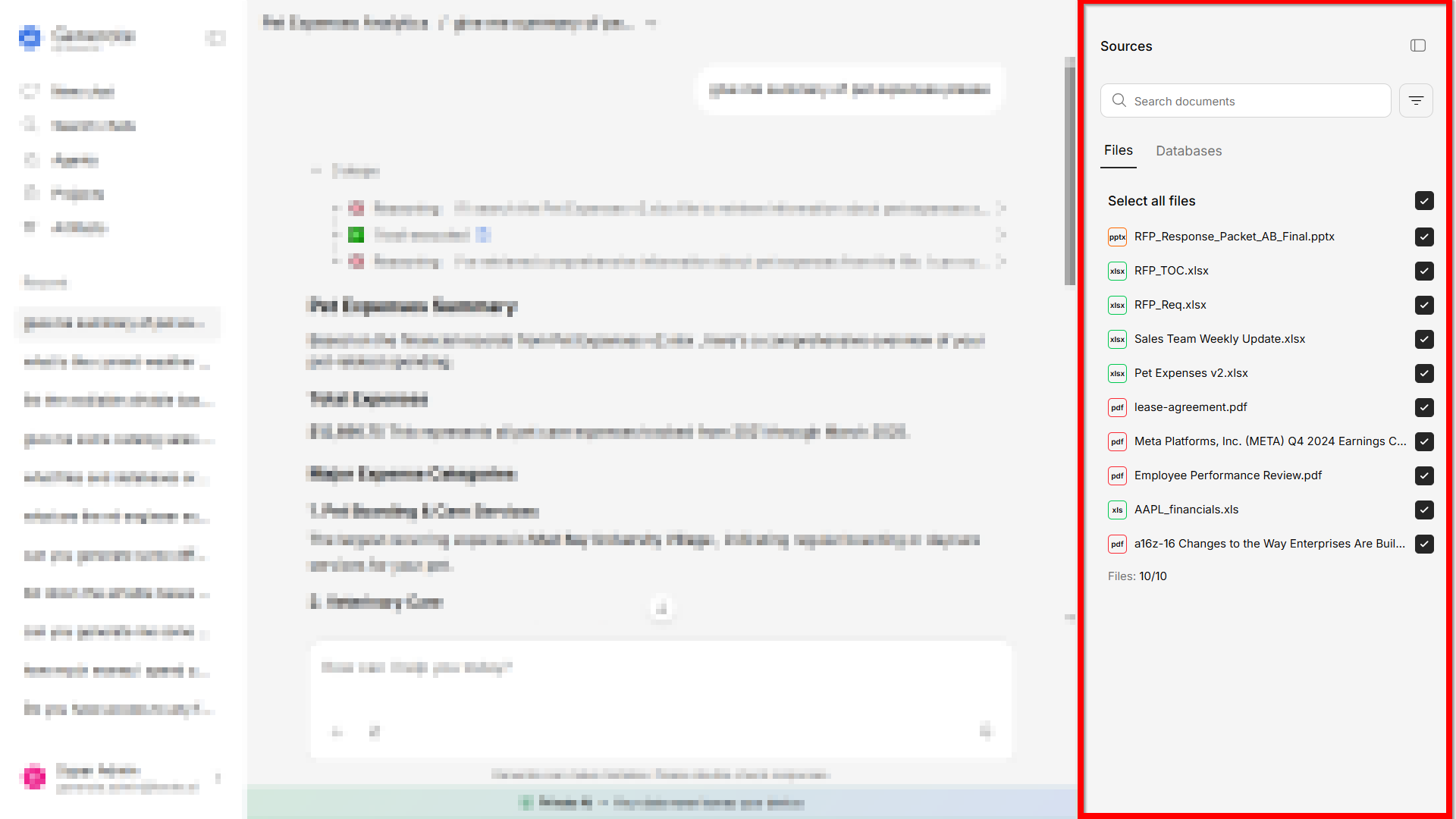
The interface is divided into three main areas:
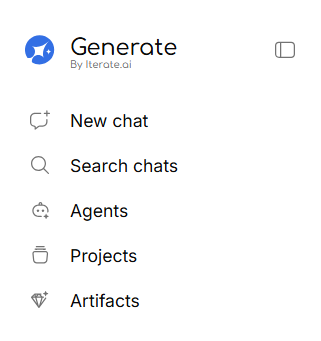
The sidebar is your main navigation hub. From here you can:
- Start a new chat — The prominent button at the top
- Browse recent chats — Quickly jump back to previous conversations
- Switch sections — Navigate between Chat, Agents, Projects, and Search
- Open SuperAgent — Launch the assistant drawer with Use SuperAgent (or
Cmd/Ctrl+K)
- Browse Skills — Open the Skills manager to enable and organize skills
- Switch workspaces — Use the profile menu to move between workspaces you belong to
- Access settings — Open your profile, preferences, and admin panel (if you’re an admin)
You can collapse the sidebar to give yourself more screen space. Click the collapse icon at the top of the sidebar, or use the keyboard shortcut.
2. Main Content Area (Center)
This is where the action happens. Depending on what you’re doing, this area shows:
- Chat view — Your conversation with the AI
- Agents list — Browse and manage your AI agents
- Projects view — See all your projects and their contents
- Search results — Results from searching across your conversations
3. Knowledge Base Panel (Right)
When you’re in a chat, the knowledge base panel slides in from the right. It shows:
- Source documents — Which documents were used to generate the answer
- Document details — Preview content, metadata, and relevance scores
- Upload options — Quickly add more documents to your knowledge base
Top Navigation
At the top of the screen, you’ll find:
- Current section indicator — Shows which part of the app you’re in
- Chat title — The name of the current conversation (click to rename)
- Action buttons — Context-specific actions like rename or add to project
Switching Between Sections
Use the sidebar tabs to move between the main sections of the platform:
| Section | What it’s for |
|---|
| New Chat | Start a fresh AI conversation |
| Search Chats | Find messages across all your past conversations |
| Agents | Browse, create, and manage AI agents |
| Projects | Organize work into separate project spaces |
The Home Dashboard
When you sign in, the Home page gives you a dashboard view of your workspace — a stats bar
(agents run, estimated hours saved, active agents, queries this month), recently visited and favorite
items, featured agents, recent activity, and the health of your connected data sources.
SuperAgent
SuperAgent is an assistant drawer you can open from anywhere — click Use SuperAgent in the
sidebar or press Cmd/Ctrl+K. It understands the page you’re on, can help you build agents and run
tasks, and can even navigate the app for you. Drag its left edge to resize it, and press Esc to
close.
Learn more about SuperAgent →
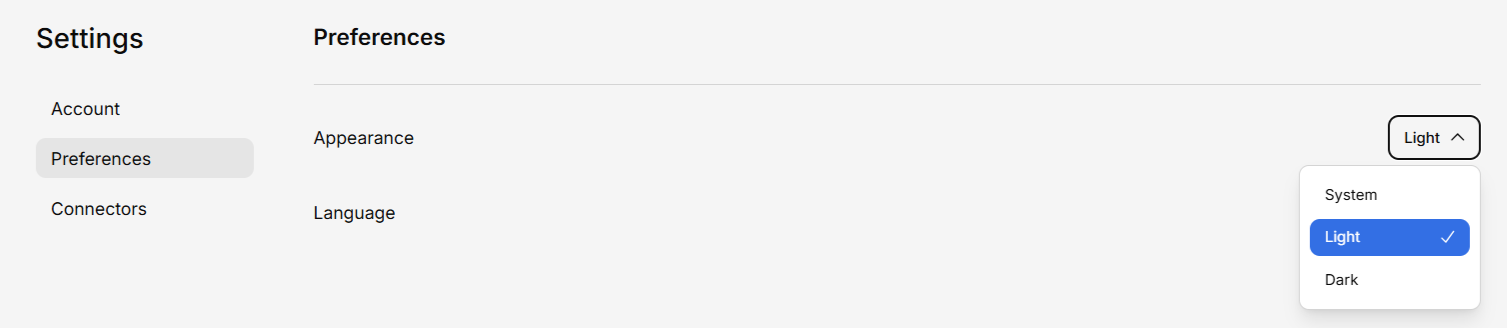
Dark Mode & Light Mode
Generate supports both light and dark themes. You can switch between them in your account settings.
Mobile & Responsive
The interface adapts to smaller screens. On mobile devices, the sidebar becomes a slide-out menu accessible via the sidebar icon.
Next Steps